The Agent block connects your workflow to Large Language Models (LLMs). It processes natural language inputs, calls external tools, and generates structured or unstructured outputs.
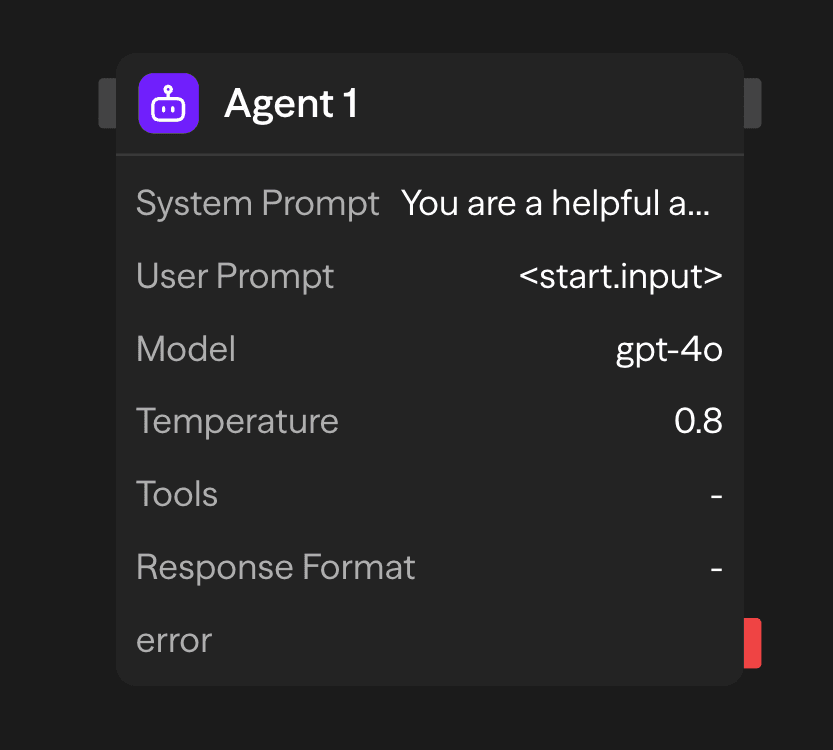
Configuration Options
Messages
The Messages field holds the conversation the model receives. It is an ordered list of messages, each with a role (system, user, or assistant) and content. System messages establish the agent's role, response methodology, and processing boundaries. User and assistant messages form the conversation the model continues. A new block starts with one empty user message.
[
  {
    "role": "system",
    "content": "You are a helpful assistant that specializes in financial analysis. Always provide clear explanations and cite sources when possible. When responding to questions about investments, include risk disclaimers."
  },
  {
    "role": "user",
    "content": "<start.input>"
  }
]
Reference upstream data inside any message with the <blockName.output> syntax, for example <start.input> or <api.data>. If you add several system messages, SteelEngine joins them into one set of instructions. Use the AI wand on the field to generate or revise the whole message list from a description.
Image URLs
In advanced mode, Image URLs gives the model up to four images to look at alongside the messages, for example screenshots from a Browser Use run. Enter https URLs one per line or as a JSON array, or reference an upstream output such as <pick.result.urls>. SteelEngine downloads each image (PNG, JPEG, WebP or GIF, up to 5 MB) and sends it to models that accept images, such as OpenAI, Anthropic, Google and xAI vision models. An image that cannot be downloaded is skipped and the block still runs.
Image Files
In advanced mode, Image Files passes files produced by earlier blocks to the model, for example <linear.files> from a Linear List Attachments run with Download Files on. Reference one file or a list of files. SteelEngine reads each file from storage with the permissions of the user the workflow runs as, keeps PNG, JPEG, WebP and GIF images up to 5 MB whose content matches their type, and leaves other files out. Image URLs and Image Files share the four-image limit, and Image URLs are used first.
Model
Type or select a model in the model combobox. The list covers OpenAI, Anthropic, Google, Vertex AI, Azure OpenAI, Azure Anthropic, AWS Bedrock, xAI, Deepseek, Groq, Cerebras, Mistral AI, Kimi, Fireworks, and OpenRouter, plus local models served by Ollama or a VLLM compatible endpoint. Model IDs use the vendor's spelling, for example gpt-5.4, claude-sonnet-4-6, or gemini-2.5-pro. Hosted-provider variants carry a prefix such as azure/, vertex/, or bedrock/.
Which advanced settings appear (Temperature, Reasoning Effort, Verbosity, Thinking Level) depends on the model you pick.
The catalog includes Claude Opus 5.5 (claude-opus-5-5), Claude Sonnet 5.5 (claude-sonnet-5-5), Claude Haiku 5.5 (claude-haiku-5-5), Claude Fable 5.2 (claude-fable-5-2), Claude Fable 5.1 (claude-fable-5-1), GPT-6.2 Astra (gpt-6.2-astra), GPT-6.2 Sol (gpt-6.2-sol), GPT-6 Astra (gpt-6-astra), GPT-6 Sol (gpt-6-sol), GPT-6 Luna (gpt-6-luna), GPT-6.1 Sol (gpt-6.1-sol), GPT-5.6 Luna (gpt-5.6-luna), Gemini 4 Carbon (gemini-4-carbon), Gemini 4 Argon (gemini-4-argon), Gemini 4 Hydrogen (gemini-4-hydrogen), Gemini 3.8 Flash (gemini-3.8-flash), Gemini 3.6 Flash (gemini-3.6-flash), Gemini 3.5 Flash-Lite (gemini-3.5-flash-lite), Grok 4.7 (grok-4.7), DeepSeek Flash (deepseek-flash), Mistral Medium 3.5 (mistral-medium-3-5), Kimi K2.6 (kimi-k2.6), Kimi K2.7 Code (kimi-k2.7-code), and Qwen3.8 27B on Cerebras (cerebras/qwen-3.8-27b). Azure Anthropic and AWS Bedrock offer the current Claude models with their own prefixes, for example azure-anthropic/claude-sonnet-5-5 and bedrock/anthropic.claude-opus-5-5; Azure OpenAI adds azure/gpt-6.2-sol, azure/gpt-6.2-astra, azure/gpt-6.1-sol and the GPT-5.6 models. Provider credentials and model availability restrictions still apply.
For a typed decision rather than text, such as picking a category, answering yes or no, or rating on a scale, use the Laya Decision block where it is available. Laya is SteelEngine's own decision model: it answers in well under a second with probabilities, needs no API key, and has no per-call model cost. It is not selectable as an Agent model because it never writes text.
When a provider retires a model, workflows that still select it keep running: SteelEngine sends the request to a current model from the same provider and bills that model's price. For example, gpt-4.1-nano runs on gpt-6-luna from October 23, 2026, and deepseek-chat runs on deepseek-flash. On Google, gemini-2.5-pro runs on gemini-3.8-flash and gemini-2.5-flash on gemini-3.5-flash-lite from December 1, 2026, and gemini-3.5-flash already runs on gemini-3.6-flash. On Azure OpenAI, azure/o3 runs on azure/gpt-6-sol and azure/o4-mini on azure/gpt-5.4-mini from November 19, 2026; the Azure resource needs a deployment with the replacement's name. Saved and deployed workflows are not changed, so you can pick a different model at any time. A saved setting the replacement does not accept is adjusted for that run: Temperature is left out on reasoning models, and a reasoning effort the replacement does not offer moves to the nearest level it does. A run that used a replacement says so: the block's output has model set to the model that ran and requestedModel set to the one the workflow selected.
Organization owners and admins are told ahead of time. When a workflow's draft or live deployment selects a model with a retirement date, the organization dashboard shows an alert from 90 days before the shutdown day, naming the model, the date, the replacement and the workflows. The alert becomes a warning at 30 days and reports the switch for 30 days afterwards. Owners and admins also get an in-app notification and an email 30 days ahead, 7 days ahead and on the shutdown day, each sent once; the email follows the notification email preference, and each email is sent at most once: if sending cannot be confirmed it is not repeated, and the in-app notification and dashboard alert still carry the notice. A model with no replacement is flagged as critical, because its workflows stop working on the shutdown day. This covers every provider the deployment has not blocked. Self-hosted installs learn about new retirements when they upgrade, because the retirement list ships with each release.
Models the provider has shut down are no longer listed, including Gemini 2.0 Flash and Flash-Lite, Claude Opus 4 and 4.1, Claude Sonnet 4, Claude 3 Haiku, deepseek-chat, and deepseek-reasoner. A workflow that still names one of them runs on its replacement in the same way: claude-opus-4-1 runs on claude-opus-5-5, gemini-2.0-flash on gemini-3.8-flash, and deepseek-reasoner on deepseek-flash. Their provider credential fields, and Temperature when the replacement supports it, stay visible so saved values keep working.
API Key
Your API key for the selected LLM provider. This is securely stored and used for authentication.
Provider Credentials
Some providers need more than a key. These fields appear only when you select a matching model:
- Azure Endpoint and Azure API Version: for
azure/andazure-anthropic/models - Google Cloud Account, Vertex AI Project, and Vertex AI Location: for
vertex/models. Connect a Google Cloud account with OAuth, or enter a credential ID under Advanced. The Gemini 4 models on Vertex (vertex/gemini-4-carbon,vertex/gemini-4-argon,vertex/gemini-4-hydrogen) are served only from theglobal,usandeulocations (Gemini 4 Argon also fromeurope-west2andasia-southeast1). With no location set, or with a United States region such asus-central1, they run in theusmulti-region, which keeps processing in the United States. If you set any other location that does not serve the model, the block fails with an error naming the locations that do; the request is never moved out of the place you chose. Google offers Gemini 4 Carbon on Vertex to verified enterprise customers only. - AWS Access Key ID, AWS Secret Access Key, and AWS Region: for
bedrock/models
Temperature
An Advanced slider that controls response randomness and creativity. The range depends on the model. Most providers accept 0-2, and Anthropic models accept 0-1. The slider is hidden for models that do not support temperature.
- Low (0-0.3): Deterministic and focused. Best for factual tasks and accuracy.
- Medium (0.3-0.7): Balanced creativity and focus. Good for general use.
- High (0.7 up to the model's maximum): Creative and varied. Ideal for brainstorming and content generation.
Reasoning Effort, Verbosity, and Thinking Level
Three Advanced selects for models with extended reasoning. Reasoning Effort and Verbosity apply to OpenAI reasoning models. Thinking Level applies to Anthropic and Gemini models with thinking. Available levels vary by model; each select offers only the options the selected model supports.
Claude Opus 5, Claude Sonnet 5, and Claude Haiku 5.5 think unless told not to, so a Thinking Level of none is sent to them as thinking off, and a block with no Thinking Level saved uses the model's own default. Claude Opus 5.5, Claude Sonnet 5.5, and Claude Fable 5.1 always use adaptive thinking. Their supported effort levels are low, medium, high, xhigh, and max; the default is medium for Opus 5.5 and high for Sonnet 5.5 and Fable 5.1. Saved off or none values use low effort rather than disabling thinking. Claude Haiku 5.5 uses adaptive thinking too, but off disables it. Gemini 4 Argon and Gemini 3.8 Flash offer low, medium, and high, with medium as the default.
Max Output Tokens
Controls the maximum length of the model's response. Each model defaults to its full max output token limit (e.g., 64,000 tokens for Claude Sonnet 4.5). You can override this with a custom value using the Max Output Tokens setting under Advanced. For Anthropic models, when non-streaming requests exceed the SDK's internal threshold, the provider automatically uses internal streaming to avoid timeouts.
Tools
Extend agent capabilities with external integrations. Select any integration tool from the toolbar, add tools from a connected MCP server, or define custom functions.
Example Categories:
- Communication: Gmail, Slack, Telegram, WhatsApp, Microsoft Teams
- Data Sources: Notion, Google Sheets, Airtable, Supabase, Pinecone
- Web Services: Firecrawl, Google Search, Exa AI, browser automation
- Development: GitHub, Jira, Linear
- AI Services: OpenAI, Perplexity, Hugging Face, ElevenLabs
Usage Control: each tool has a usage setting, shown as a small label on the tool row.
- Auto: Model decides when to use the tool based on context
- Force: Tool must be called in every request where the model supports forced tool choice
- None: SteelEngine removes the tool before it sends the request to the model — effectively disables the tool without deleting it
Claude Opus 5.5, Claude Sonnet 5.5, Claude Fable 5.1, DeepSeek Flash, Kimi K2.6, and Kimi K2.7 Code use automatic tool selection. A tool marked Force remains available, but the model decides whether to call it; forced tool choice is not supported for these models. None still removes the tool from the request.
Skills
Attach Agent Skills from your workspace. The agent's instructions gain a list of the attached skills with their descriptions, and the model receives a load_skill tool. When the model decides a skill is relevant, it calls load_skill and receives the skill's full instructions. Skills load on demand, so attaching several does not bloat every request.
Memory
Memory lets the agent remember earlier turns across runs without a separate block.
- None: Each run is independent
- Conversation: The full history for the conversation, trimmed to fit the model's context window
- Sliding window (messages): The most recent N messages. Set N in Sliding Window Size (default 10)
- Sliding window (tokens): The most recent messages that fit a token budget. Set the budget in Max Tokens (default 4,000)
Any mode other than None requires a Conversation ID, for example user-123 or a reference to an upstream field. Runs that share a Conversation ID share a history. On the first run for an ID, the user and assistant messages in Messages seed the history. On later runs, the block loads the stored history and appends the latest user message from Messages. System messages are never stored.
Response Format
The Response Format parameter enforces structured output generation through JSON Schema validation. This ensures consistent, machine-readable responses that conform to predefined data structures:
{
  "name": "user_analysis",
  "schema": {
    "type": "object",
    "properties": {
      "sentiment": {
        "type": "string",
        "enum": ["positive", "negative", "neutral"]
      },
      "confidence": {
        "type": "number",
        "minimum": 0,
        "maximum": 1
      }
    },
    "required": ["sentiment", "confidence"]
  }
}
This configuration constrains the model's output to comply with the specified schema, preventing free-form text responses and ensuring structured data generation.
Previous Interaction ID
Shown for Deep Research models. The Google catalog offers deep-research-preview-04-2026; saved workflows using deep-research-pro-preview-12-2025 resolve to it from October 23, 2026. The separate vertex/deep-research-pro-preview-12-2025 selection keeps its Vertex credentials and model ID.
Pass the interactionId output of an earlier Agent block to continue that research session. Deep Research does not expose Tools, Skills, Memory, Response Format, or Max Output Tokens. Those settings are also omitted when a saved workflow is prepared for execution. The report is returned in content, with the model, token usage, cost, and interaction ID in the usual outputs.
Accessing Results
After an agent completes, you can access its outputs:
<agent.content>: The agent's response text or structured data<agent.tokens>: Token usage statistics (input,output,total, andcachedInputwhen the provider reports prompt-cache reads)<agent.toolCalls>: Tool execution details (list,count)<agent.providerTiming>: Provider and tool execution timing details<agent.cost>: Estimated cost of the API call (input,output,toolCost,total,pricing), if available<agent.interactionId>: Provider interaction identifier, when the provider returns one
Advanced Features
Memory + Agent: Conversation History
Set Memory on the Agent block to a mode other than None and give it a Conversation ID (see Memory above). The block loads the stored history before each request and appends the new turn after it. Chat-style workflows need no extra blocks.
For history you want to read or write from other blocks, or to share between agents, use the Memory block with a consistent id and reference its output in Messages.
Model Availability
Organization admins can disable models in the Model availability section of the organization settings, and workspace settings can disable more for one workspace. The Agent block checks the selected model against these restrictions before every run. A run that names a disabled model fails at that block.
Outputs
<agent.content>: Agent's response text<agent.model>: Model identifier used for the request<agent.tokens>: Token usage statistics (input,output,total, andcachedInputwhen the provider reports prompt-cache reads)<agent.toolCalls>: Tool execution details (list,count)<agent.providerTiming>: Provider and tool execution timing details<agent.cost>: Estimated API call cost (input,output,toolCost,total,pricing)<agent.interactionId>: Provider interaction identifier, when available
Example Use Cases
Customer Support Automation - Handle inquiries with database and tool access
API (Ticket) → Agent (Postgres, KB, Linear) → Gmail (Reply) → Memory (Save)Multi-Model Content Analysis - Analyze content with different AI models
Function (Process) → Agent (GPT-4o Technical) → Agent (Claude Sentiment) → Function (Report)Tool-Powered Research Assistant - Research with web search and document access
Input → Agent (Google Search, Notion) → Function (Compile Report)Best Practices
- Be specific in system messages: Clearly define the agent's role, tone, and limitations. The more specific your instructions are, the better the agent will be able to fulfill its intended purpose.
- Choose the right temperature setting: Use lower temperature settings (0-0.3) when accuracy is important, or increase temperature toward the model's maximum for more creative or varied responses
- Leverage tools effectively: Integrate tools that complement the agent's purpose and enhance its capabilities. Be selective about which tools you provide to avoid overwhelming the agent. For tasks with little overlap, use another Agent block for the best results.