A quick lookup for everyday actions in the SteelEngine workflow editor. For keyboard shortcuts, see Keyboard Shortcuts.
Mod refers to Cmd on macOS and Ctrl on Windows/Linux.
Workspaces
| Action | How | Preview |
|---|---|---|
| Create a workspace | Open the workspace switcher (click the workspace name, or Mod + O) → New workspace | |
| Switch workspaces | Open the workspace switcher → pick a workspace, or type to search. URL changes to /{orgSlug}/{newWorkspaceSlug}/... | |
| Switch organization | Open the workspace switcher → pick a workspace under another organization, or pick the organization in the left column first. URL changes to /{newOrgSlug}/{workspaceSlug}/... | — |
| Invite team members | Open the workspace switcher → Invite members | |
| Rename a workspace | In the workspace switcher, right-click a workspace (or click its ⋯) → Rename | 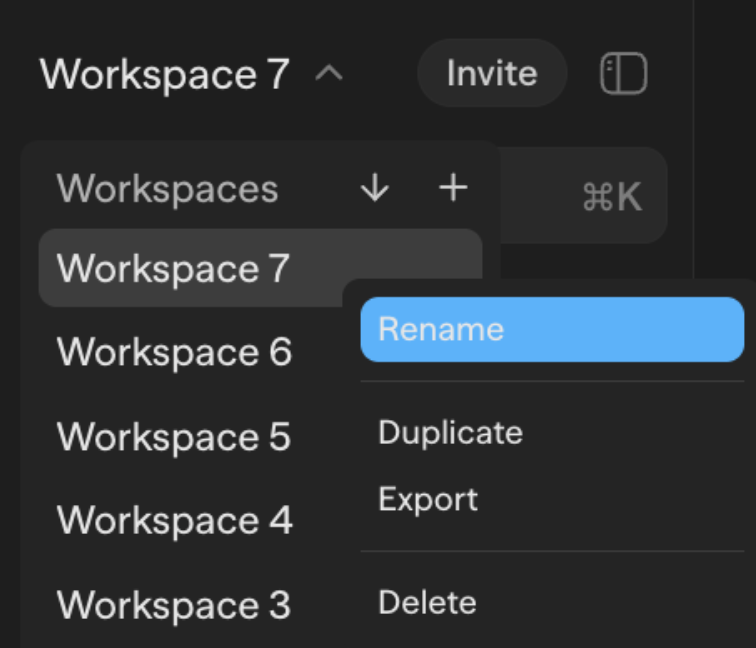 |
| Duplicate a workspace | In the workspace switcher, right-click a workspace → Duplicate | |
| Export a workspace | In the workspace switcher, right-click a workspace → Export | |
| Delete a workspace | In the workspace switcher, right-click a workspace → Delete | |
| Pin a workspace | In the workspace switcher, right-click a workspace → Pin. Pinned workspaces stay at the top of the switcher |
Workflows
| Action | How | Preview |
|---|---|---|
| Create a workflow | Click + button in sidebar | 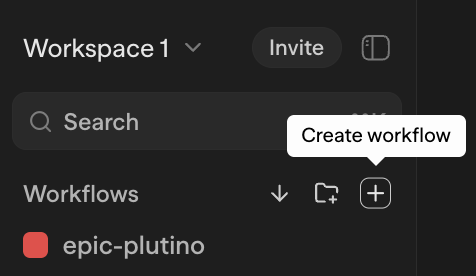 |
| Reorder / move workflows | Drag workflow up/down or onto a folder | |
| Open the Workflows menu | In the Workflows header, click More actions (…): Import workflow, Create folder, Export client code | — |
| Import a workflow | Workflows header → More actions (…) → Import workflow → Select file | 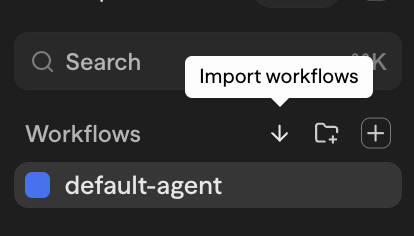 |
| Multi-select workflows | Mod+Click or Shift+Click workflows in sidebar | |
| Open in new tab | Right-click workflow → Open in new tab | 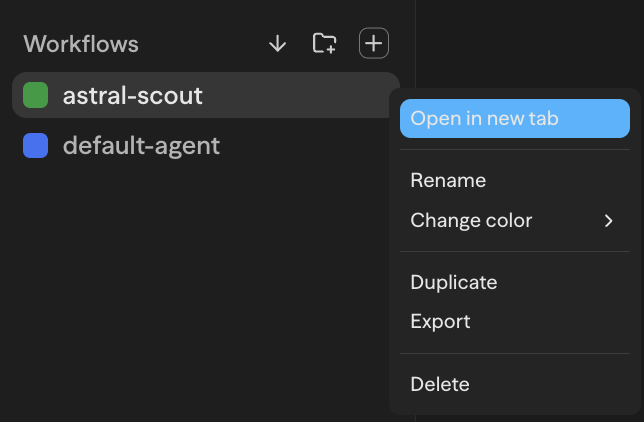 |
| Rename a workflow | Right-click workflow → Rename | |
| Set an execution timeout | Right-click one workflow → Execution timeout → Enter seconds → Save. Leave blank for platform defaults. See Workflow Timeouts. | |
| Assign workflow color | Right-click workflow → Change color | |
| Move a workflow to a folder | Right-click workflow → Move to folder → pick a folder, or (Root) | |
| Duplicate a workflow | Right-click workflow → Duplicate | |
| Export a workflow | Right-click workflow → Export | |
| Delete a workflow | Right-click workflow → Delete | |
| Rename a folder | Right-click folder → Rename | 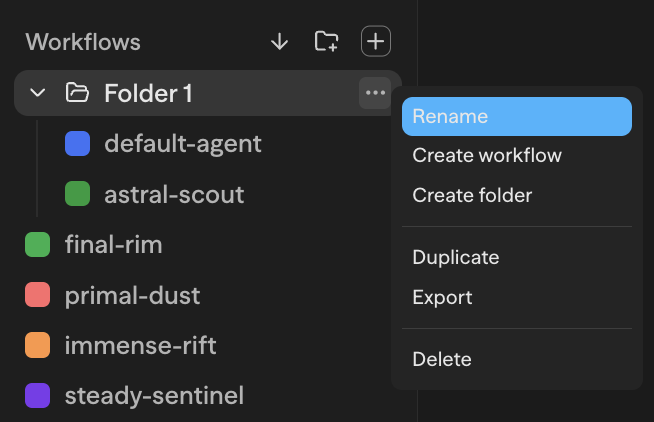 |
| Create workflow in folder | Right-click folder → Create workflow | |
| Create folder in folder | Right-click folder → Create folder | |
| Duplicate a folder | Right-click folder → Duplicate | |
| Export a folder | Right-click folder → Export | |
| Delete a folder | Right-click folder → Delete |
Protected workflows use a branch-first editing flow. Open Source Control in the workspace sidebar for Overview, Changes, Releases, and Settings. See the workspace Source Control guide for repository setup, protection, commits, pull requests, and deployment behavior.
Chats & Folders
| Action | How |
|---|---|
| Create a chat folder | Sidebar → + menu next to "All chats" → Create folder (give it a name and optional color) |
| Move a chat into a folder | Drag the chat onto a folder, or right-click → Move to folder |
| Move a chat back to root | Drag onto the root drop zone below the chat list, or right-click → Move to folder → (Root) |
| Reorder chats inside a folder | Drag chats to reorder; persists across reloads |
| Reorder folders | Drag a folder header to reposition it in the tree |
| Rename a chat or folder | Right-click → Rename |
| Recolor a folder | Right-click folder → Change color → pick a swatch |
| Delete a chat | Right-click → Delete (the chat is removed but the folder stays) |
| Delete a folder | Right-click folder → Delete. Cascades: every chat inside (and any nested folders) is deleted too |
| Expand / collapse a folder | Click the folder header. State is saved per browser |
Blocks
| Action | How | Preview |
|---|---|---|
| Add a block | Drag from Toolbar panel, or right-click canvas → Add Block | |
| Multi-select blocks | Mod+Click additional blocks, or shift-drag to draw selection box | |
| Copy blocks | Mod+C with blocks selected | |
| Paste blocks | Mod+V to paste copied blocks | |
| Duplicate blocks | Right-click → Duplicate | |
| Delete blocks | Delete or Backspace key, or right-click → Delete | 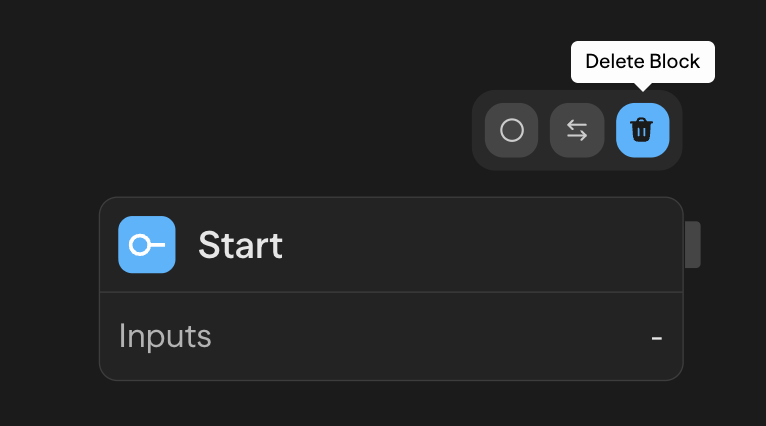 |
| Rename a block | Click block name in header, or edit in the Editor panel | |
| Enable/Disable a block | Right-click → Enable/Disable | 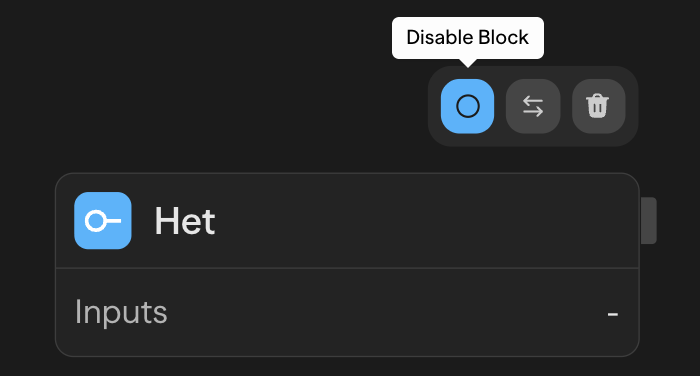 |
| Lock/Unlock a block | Hover block → Click lock icon (Admin only) | 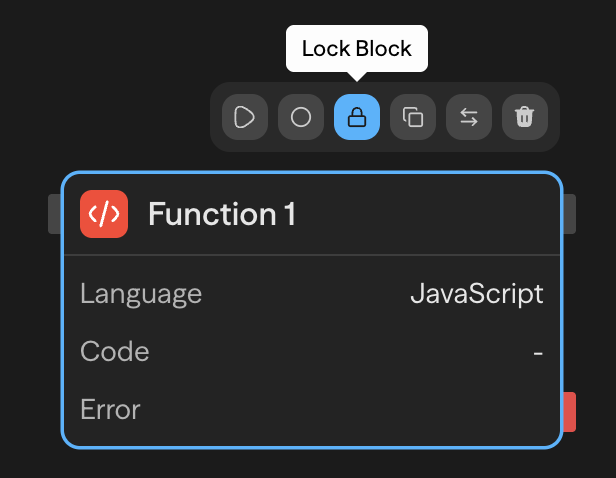 |
| Toggle handle orientation | Right-click → Flip Handles | |
| Configure a block | Select block → use Editor panel on right |
Connections
| Action | How | Preview |
|---|---|---|
| Create a connection | Drag from output handle to input handle | |
| Delete a connection | Click edge to select → Delete key | |
| Bundle connections into one tidy path | Hold Alt (Option on macOS) and drag across two or more connections, or right-click canvas → Tidy wires into a bundle and drag. See Keyboard Shortcuts | |
| Bundle the connections of every block | Right-click canvas → Bundle wires from each block, or click the bundle button at the right end of the canvas toolbar. Connecting a second wire from a block bundles that block for you | |
| Draw connections as smooth cables or right angles | Click the wire style button in the wire group at the right end of the canvas toolbar. The setting is kept on your device. See Keyboard Shortcuts | |
| Use output in another block | Drag connection tag into input field |
Panels & Views
| Action | How | Preview |
|---|---|---|
| Search toolbar | Mod+F | |
| Search everything | Mod+K | 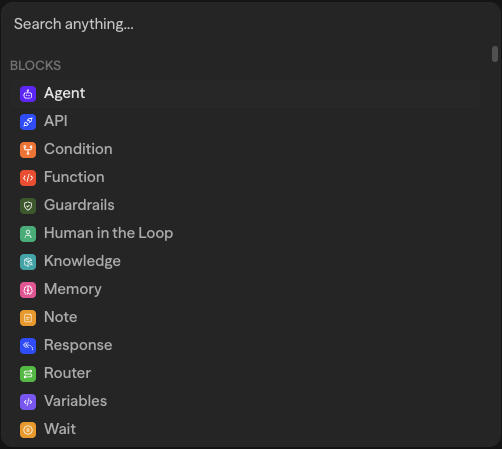 |
| Toggle manual mode | Click Switch to manual ID next to a selector field to type a value. Click Switch to selector to go back | 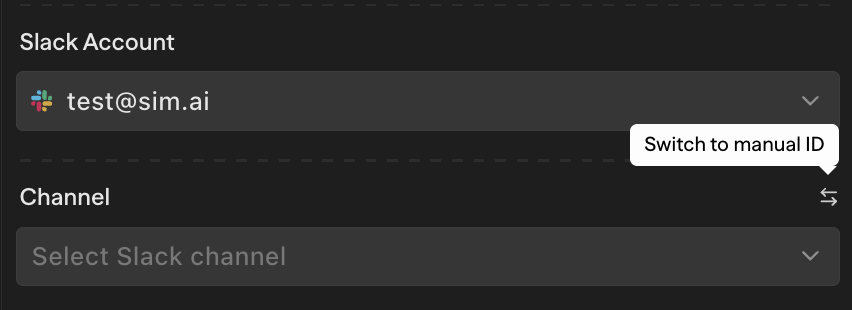 |
| Collapse/expand sidebar | Click collapse button on sidebar | |
| Open the sidebar on a phone | Tap the menu button at the top left of the page. Tap outside the sidebar, press Esc, or open a page to close it |
Running & Testing
| Action | How | Preview |
|---|---|---|
| Run workflow | Click Run Workflow button or Mod+Enter |  |
| Stop workflow | Click Stop button or Mod+Enter while running |  |
| Test with chat | Use the floating Chat panel (right-click canvas → Open Chat). This test panel runs the workflow. It is not the Assistant tab |  |
| Select output to view | Click the Outputs dropdown in the Chat panel → Select block output | 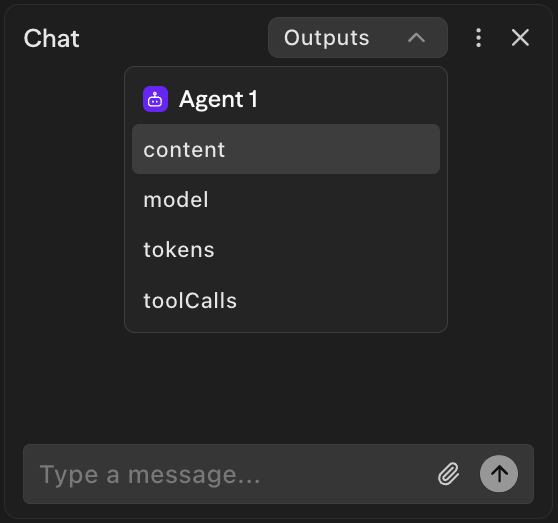 |
| Clear chat history | Chat panel → More options → Clear | 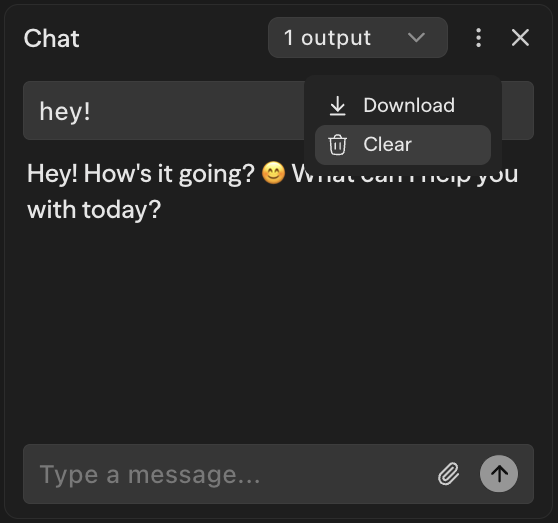 |
| Run from block | Hover block → Click play button, or right-click → Run from block | 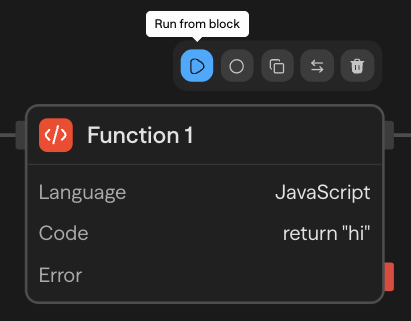 |
| Run until block | Right-click block → Run until block | 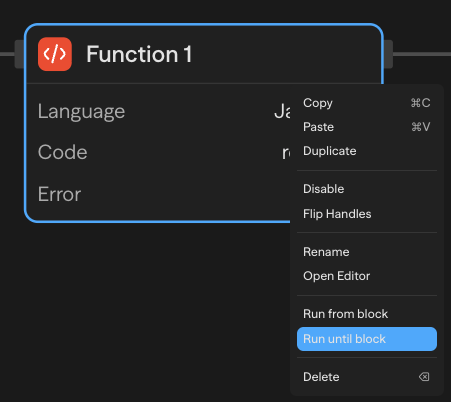 |
| View execution logs | Open terminal panel at bottom, or Mod+L | 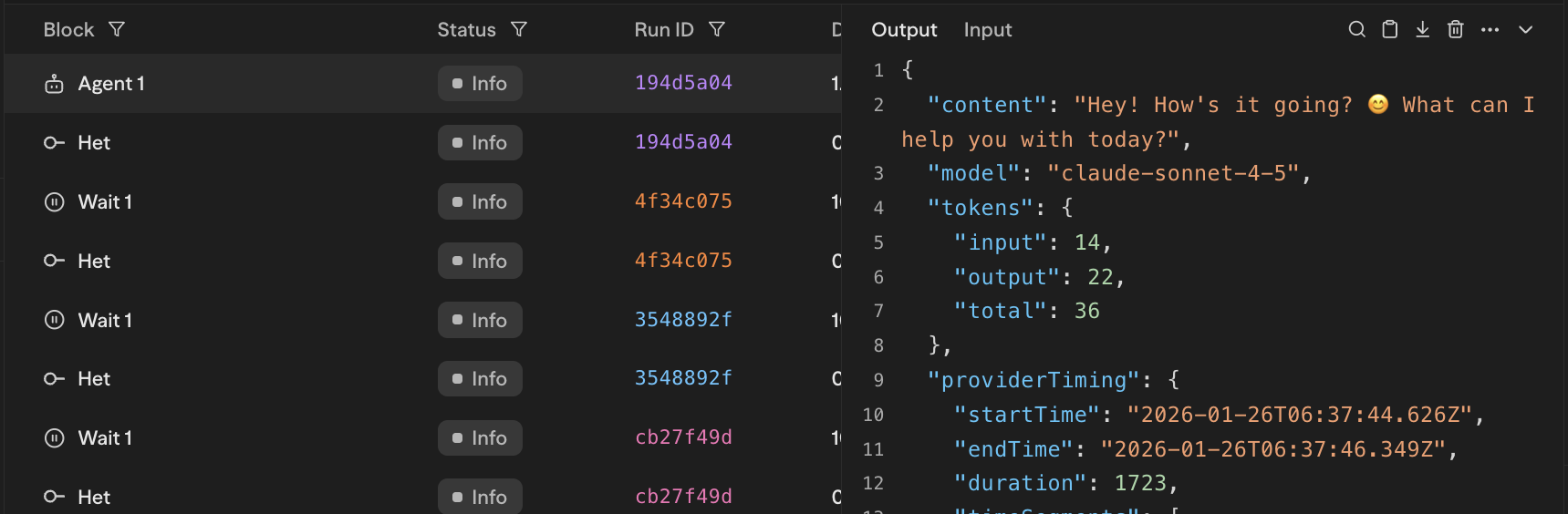 |
| Filter logs | Click filter icon in terminal → Filter by block or status | 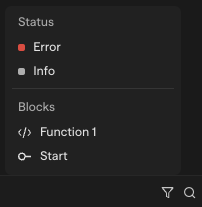 |
| Search logs | Use the Search field in the terminal | 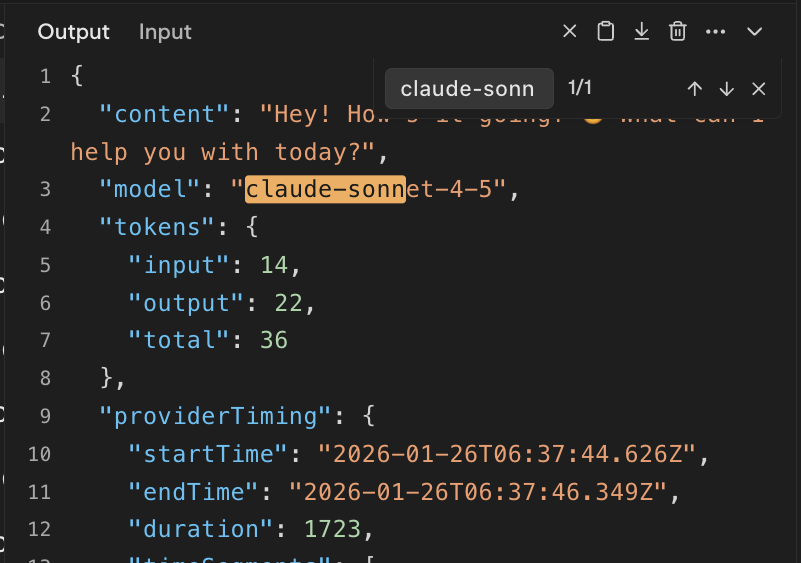 |
| Copy log entry | Copy icon in the log detail view, or right-click log entry → Copy Run ID | 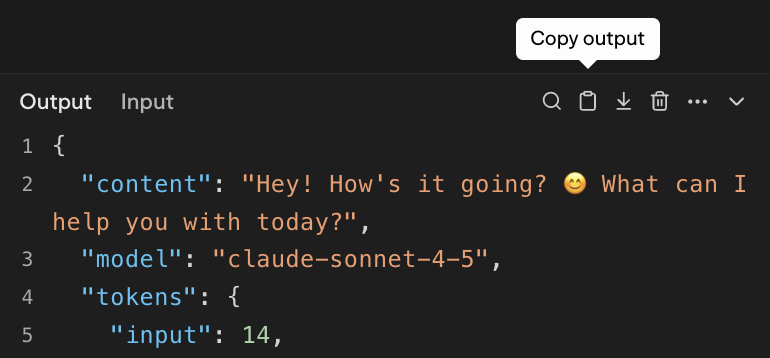 |
| Clear terminal | Trash icon or Mod+D | 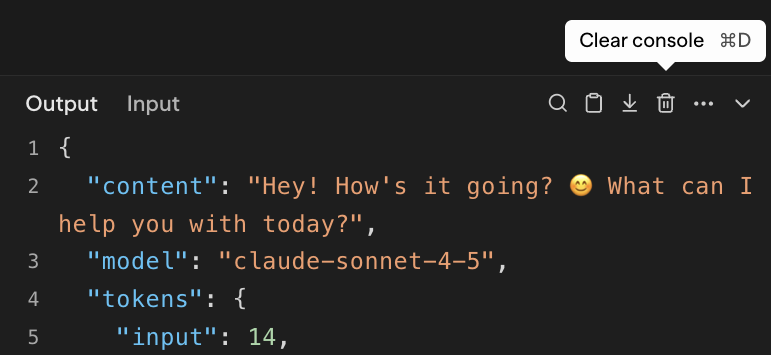 |
Deployment
| Action | How | Preview |
|---|---|---|
| Deploy a workflow | Click Deploy button in panel |  |
| Update deployment | Click Update when changes are detected |  |
| View deployment status | Check status indicator (Live/Update/Deploy) in Deploy tab | 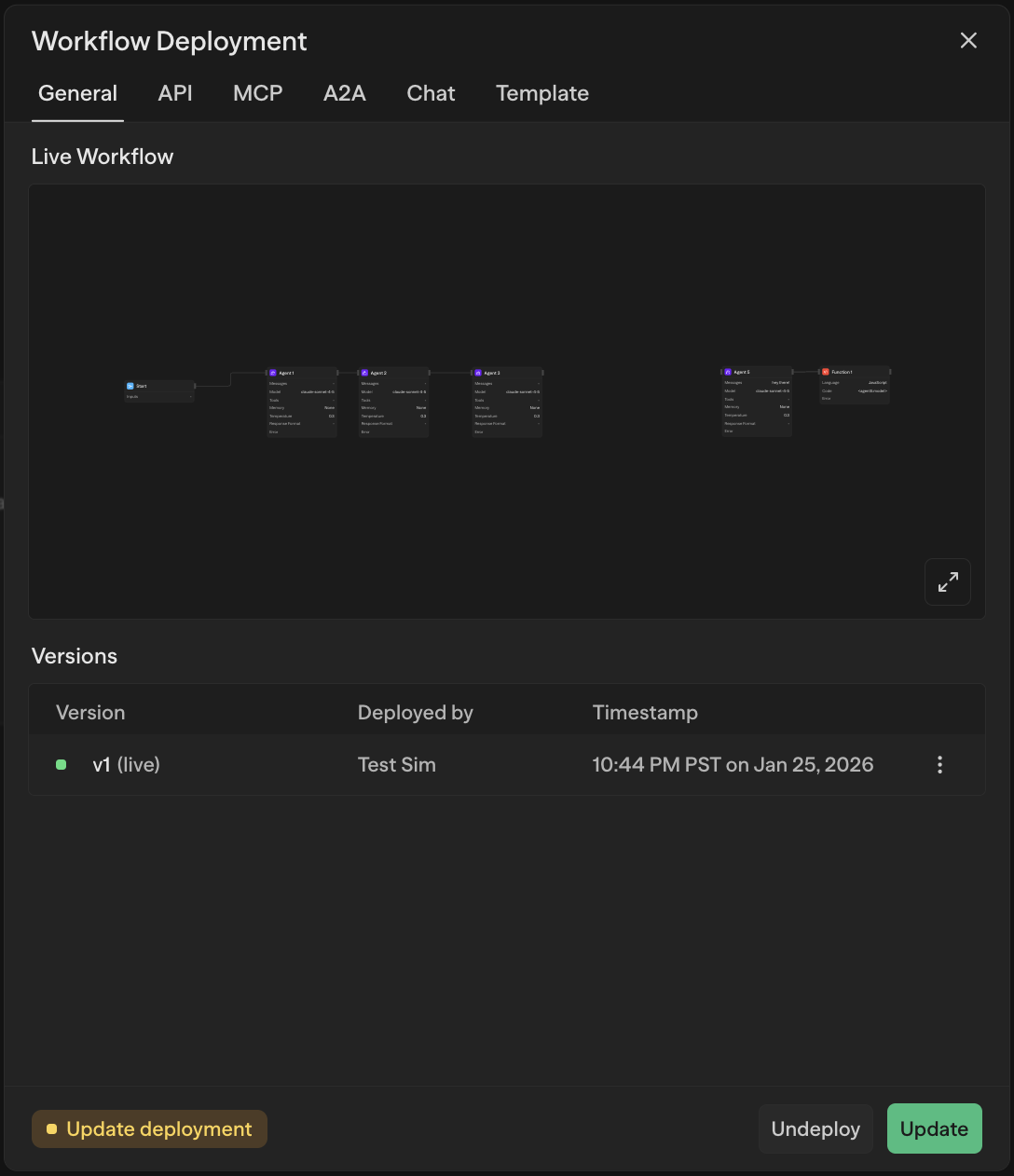 |
| Revert deployment | Access previous versions in Deploy tab → Promote to live | 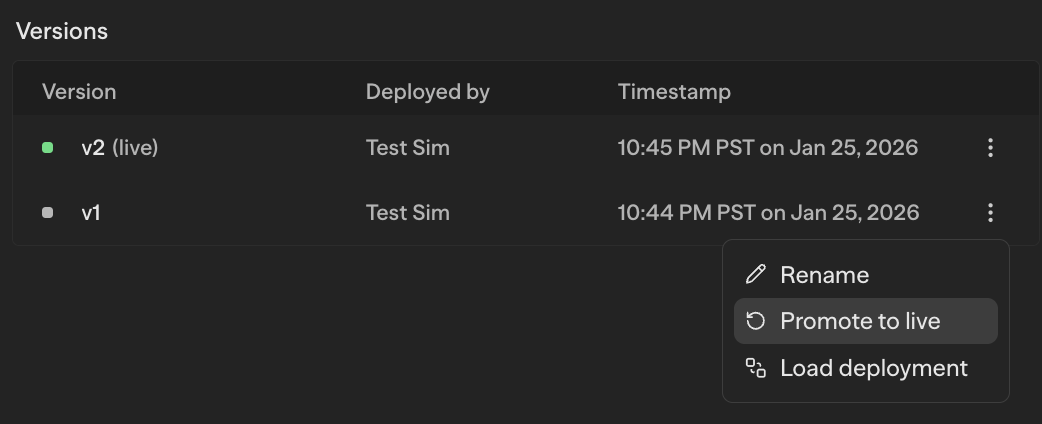 |
| Add version description | Deploy tab → Click description icon → Add or generate description | |
| Copy API endpoint | Deploy tab → API → Copy API cURL | 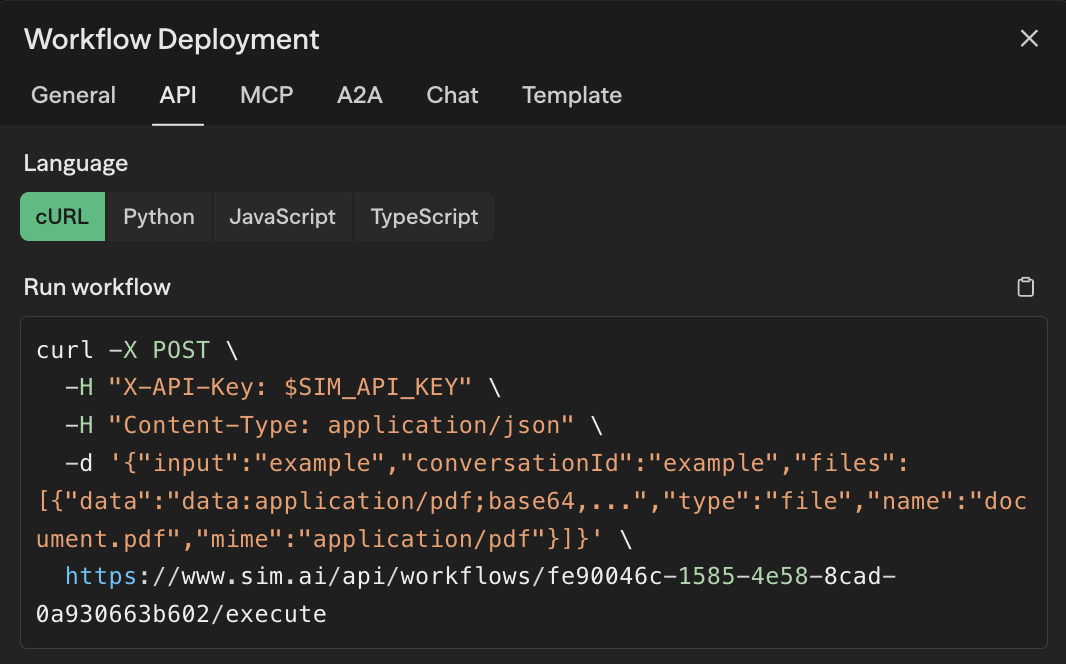 |
Variables
| Action | How | Preview |
|---|---|---|
| Add / Edit / Delete workflow variable | Panel -> Variables -> Add Variable, click to edit, or delete icon | 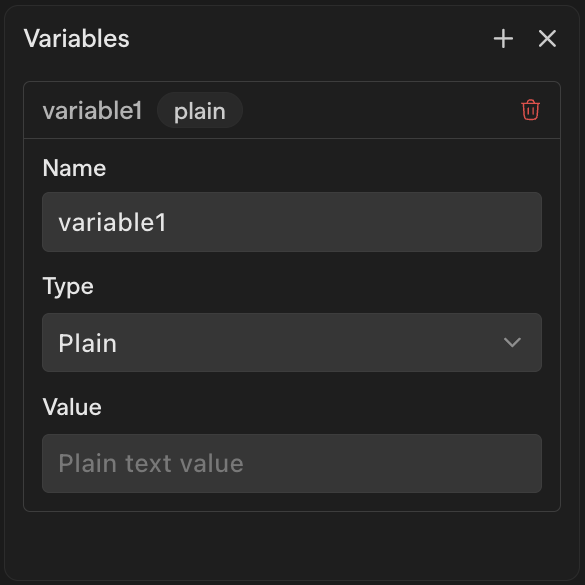 |
| Add environment variable | Workspace Settings → Secrets → Add | 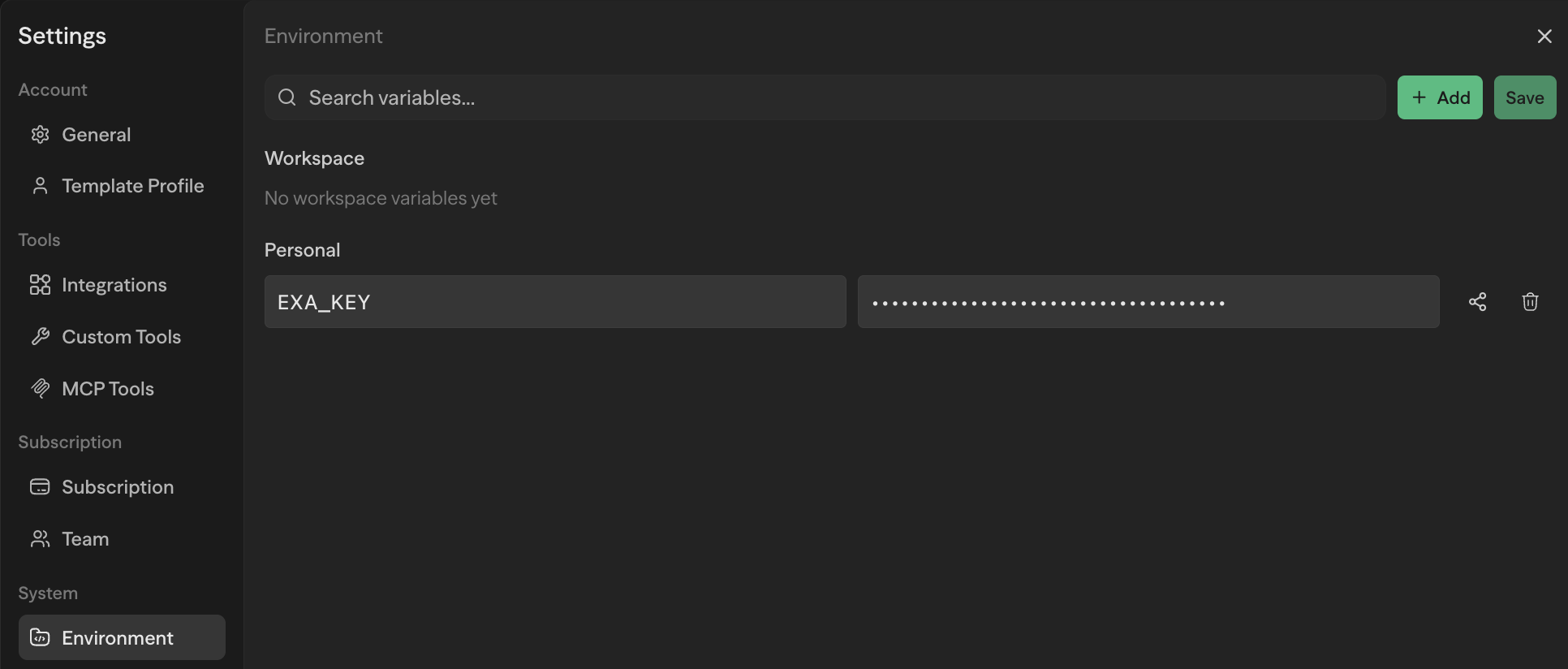 |
| Manage provider API keys | Workspace Settings → BYOK on hosted or self-hosted installations. Authorized readers see masked keys; BYOK managers can add, update, or delete them. Organization keys are labeled as inherited. See Bring Your Own Key. | — |
| Reference a workflow variable | Use <blockName.itemName> syntax in block inputs | 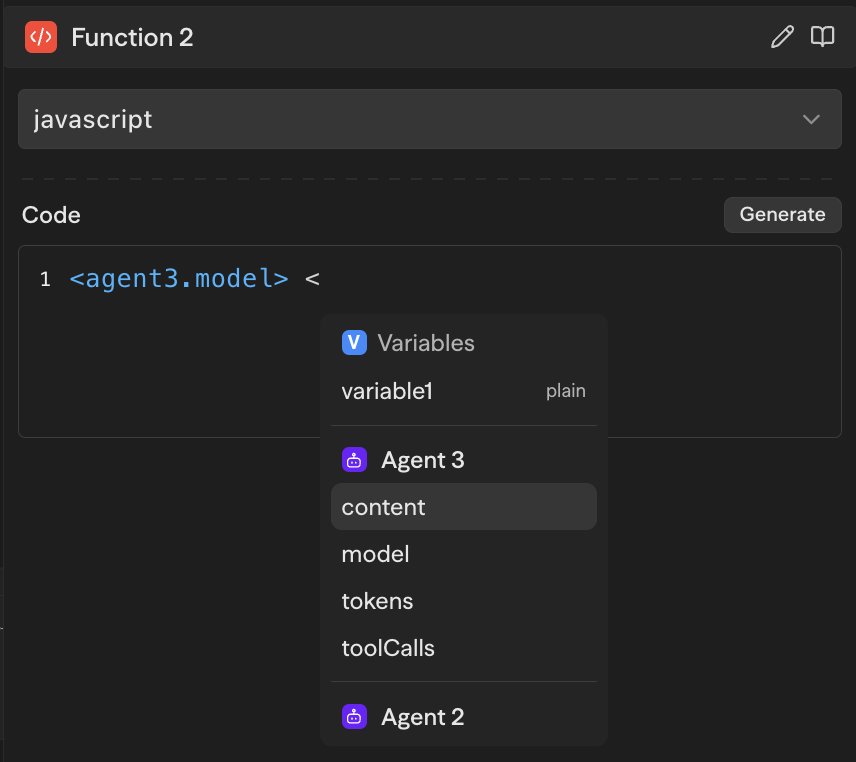 |
| Reference an environment variable | Use {{ENV_VAR}} syntax in block inputs | 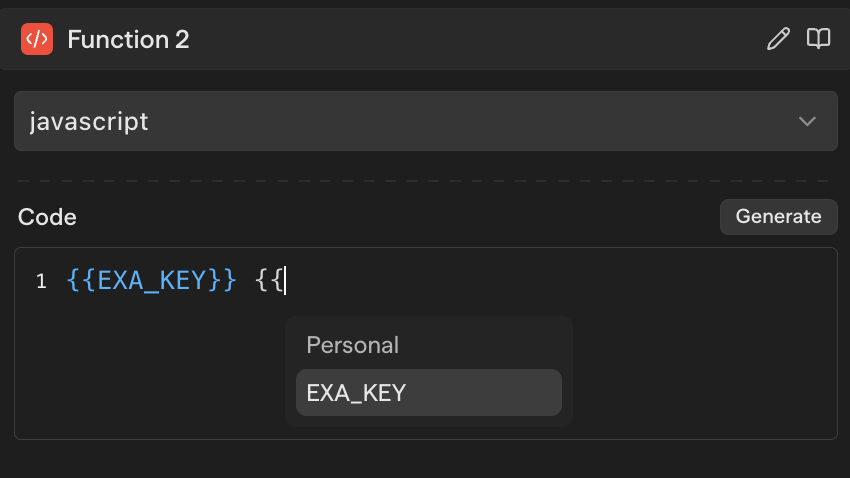 |