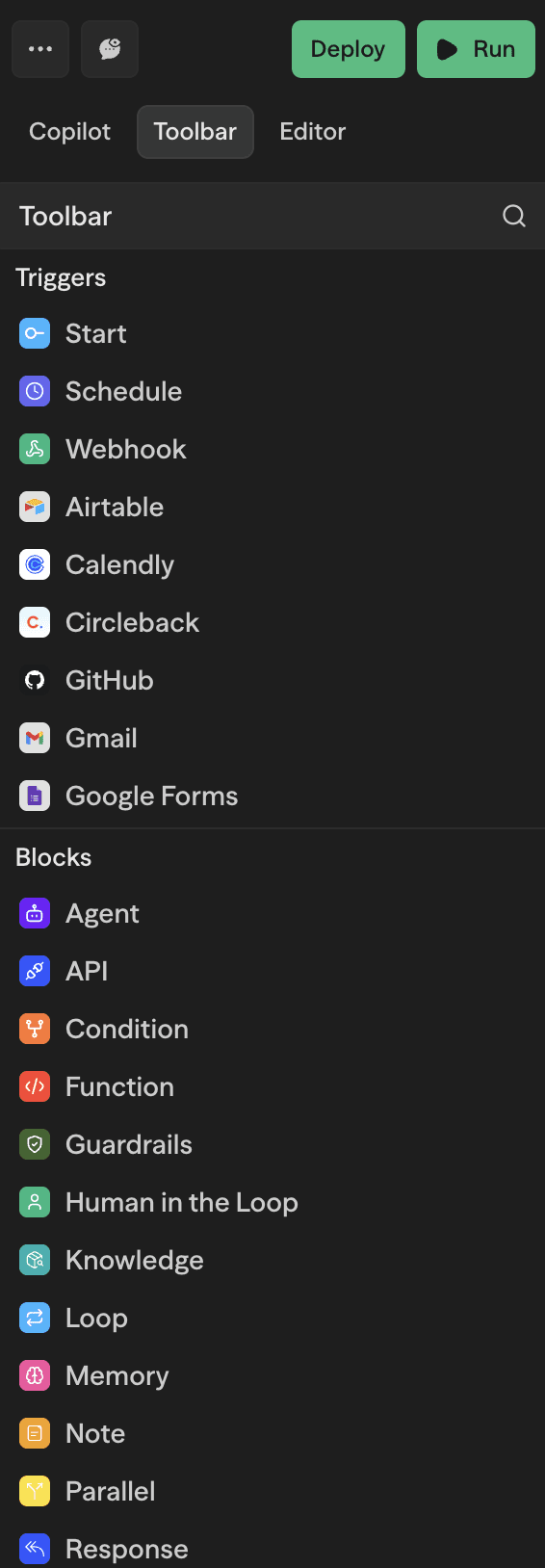
Core Triggers
Use the Start block for everything originating from the editor, deploy-to-API, or deploy-to-chat experiences. Other triggers remain available for event-driven workflows:
Start
Unified entry point that supports editor runs, API deployments and chat deployments
Webhook
Receive external webhook payloads
Schedule
Cron or interval based execution
RSS Feed
Monitor RSS and Atom feeds for new content
Framer
Start a workflow from signed Framer native form submissions
Email Polling Groups
Monitor team Gmail and Outlook inboxes
Quick Comparison
| Trigger | Start condition |
|---|---|
| Start | Editor runs, deploy-to-API requests, or chat messages |
| Schedule | Timer managed in schedule block |
| Webhook | On inbound HTTP request |
| RSS Feed | New item published to feed |
| Framer | Signed form submission delivered by Framer |
| Email Polling Groups | New email received in team Gmail or Outlook inboxes |
The Start block always exposes
input,conversationId, andfilesfields. Add custom fields to the input format for additional structured data.
Using Triggers
- Drop the Start block in the start slot (or an alternate trigger like Webhook/Schedule).
- Configure any required schema or auth.
- Connect the block to the rest of the workflow.
Deployments power every trigger. Update the workflow, redeploy, and all trigger entry points pick up the new snapshot. Learn more in Execution → Deployment Snapshots.
Manual Execution Priority
When you click Run in the editor, SteelEngine automatically selects which trigger to execute based on the following priority order:
- Start Block (highest priority)
- Schedule Triggers
- External Triggers (webhooks, integrations like Slack, Gmail, Airtable, etc.)
If your workflow has multiple triggers, the highest priority trigger will be executed. For example, if you have both a Start block and a Webhook trigger, clicking Run will execute the Start block.
External triggers with mock payloads: When external triggers (webhooks and integrations) are executed manually, SteelEngine automatically generates mock payloads based on the trigger's expected data structure. This ensures downstream blocks can resolve variables correctly during testing.
Integration Triggers
Many integrations can also start a workflow from their own events. The toolbar's Triggers section lists Start, Schedule, and Webhook first, then every integration trigger in alphabetical order.
To add one:
- Drag the integration from the Triggers section onto the canvas, or click it.
- Pick the event to listen for.
- Connect the credentials the integration needs.
See Trigger Mode for Service Blocks for details.
Slack triggers use a workspace bot installation from the hosted Slack app or a custom app. Select one or more events from the app's saved bot subscriptions in Events to match, or use All events. Any selected event can trigger the workflow within the channel and access restrictions. Apply optional channel and message filters. The app has one Events API URL shared by its workflows. Personal Slack user connections are available for actions, not workflow triggers.
The list below groups the integrations that have triggers. Each tool page lists the events it exposes and their output fields under Triggers.
- Development and project management: Linear, Notion, Confluence, Jira, GitHub, Monday, Vercel, Azure DevOps
- CRM and sales: HubSpot, Attio, Salesforce, Intercom, Stripe
- Outreach and email delivery: Instantly, Email Bison, Lemlist, Resend, Sendblue
- Recruiting: Greenhouse, Ashby
- Meetings and calls: Cal Com, Grain, Zoom, Calendly, Circleback, Fathom, Gong, Fireflies, Twilio Voice
- Messaging: Microsoft Teams, Slack, Telegram, WhatsApp
- Forms and sites: Webflow, Google Forms, Typeform
- Email inboxes (polling): Gmail, Outlook, IMAP Email
- Google Workspace (polling): Google Calendar
- Data: Airtable
Polling triggers check the account on a schedule instead of receiving a webhook. SteelEngine disables a polling trigger after 100 consecutive failed polls. The other triggers receive webhooks. Depending on the provider, SteelEngine registers the webhook when you deploy, or the trigger's setup instructions show you where to paste the webhook URL.
Email Polling Groups
Polling Groups let you monitor multiple team members' Gmail or Outlook inboxes with a single trigger. Requires a Team or Enterprise plan. Email Polling appears in Settings only when your deployment enables it with the NEXT_PUBLIC_CREDENTIAL_SETS_ENABLED toggle (see Self-Hosted Configuration).
Creating a Polling Group (Admin/Owner)
- Go to Settings → Email Polling
- Click Create and choose Gmail or Outlook
- Enter a name for the group
Inviting Members
- Open your polling group
- Type each address into the Enter email addresses field. You can also drop a CSV or TXT file to add every address it contains
- Click Invite
Invitees receive an email with a link to connect their account. Once connected, their inbox is automatically included in the polling group. Invitees don't need to be members of your SteelEngine organization.
New users can open an active invitation emailed to them and create a SteelEngine account using that same email address, with a password or Google. They return to the invitation to accept it and connect their inbox. Shared invitation links without an email addressee require an existing SteelEngine account.
Using in a Workflow
When configuring an email trigger, select your polling group from the credentials dropdown instead of an individual account. The system creates webhooks for each member and routes all emails through your workflow.