When you open Chat inside the workflow editor, from the Assistant tab of the editor's right panel, it carries the current workflow as context. It reads the workflow you have open, understands the blocks and connections that already exist, and can explain, edit, debug, and improve that workflow from natural language. The editor's floating Chat panel (opened with Open Chat from the canvas menu) is different. That panel is the test panel that runs the workflow.
For workspace-wide work across workflows, tables, files, knowledge bases, and scheduled tasks, open a Chat from Home instead.
The editor passes the workflow ID, active source-control branch, and selected block IDs with your request. Chat refreshes the saved workflow under your current permissions and labels the editor view as a snapshot that may contain unsaved changes. When you attach a resource from the panel, its ID determines which resource is read.
When the editor is on a source-control branch, Chat reads and edits the branch copy of the workflow. It does not run the workflow to test those changes: a run executes the main draft or the deployed version, not the branch copy, and Chat says the changes are untested.
Away from a branch, Chat test-runs the saved draft on its own only when no block in it could change anything. A draft that could write, send or delete pauses for your approval before it runs. That includes a draft with an integration step that is not verified as read-only. See Creating Workflows.
Chat is included with hosted SteelEngine plans. Self-hosted deployments run Chat on the model provider keys configured for the deployment, or on a workspace's own key (see Bring Your Own Key). There is no separate assistant backend or assistant key.
What Chat Can Do
Chat can work directly against the current workflow:
- Add, configure, connect, and delete workflow blocks
- Edit existing block settings without rebuilding the whole workflow
- Explain what the workflow does and how data flows through it
- Debug failed runs by reading execution logs and current block state
- Suggest leaner block choices, better models, safer credentials, and cleaner data flow
On a protected workflow, Chat can read main but cannot edit it. Workflow-level Git authoring is paused in code and cannot be enabled with an environment variable. Existing protected main drafts stay read-only. Ordinary workflows remain editable and can be reviewed together through workspace source control.
The Chat input has no mode selector, and Chat does not keep its own checkpoints of the workflow. Save and review Chat's changes through workspace source control when the workspace has a repository.
Models
Use the model selector at the bottom of the Chat input to choose the model for the next workflow-scoped response. Faster models are better for quick explanations and small edits; stronger models are better for deep debugging and complex workflow design. Models that support it also get a Reasoning effort selector next to the model picker.
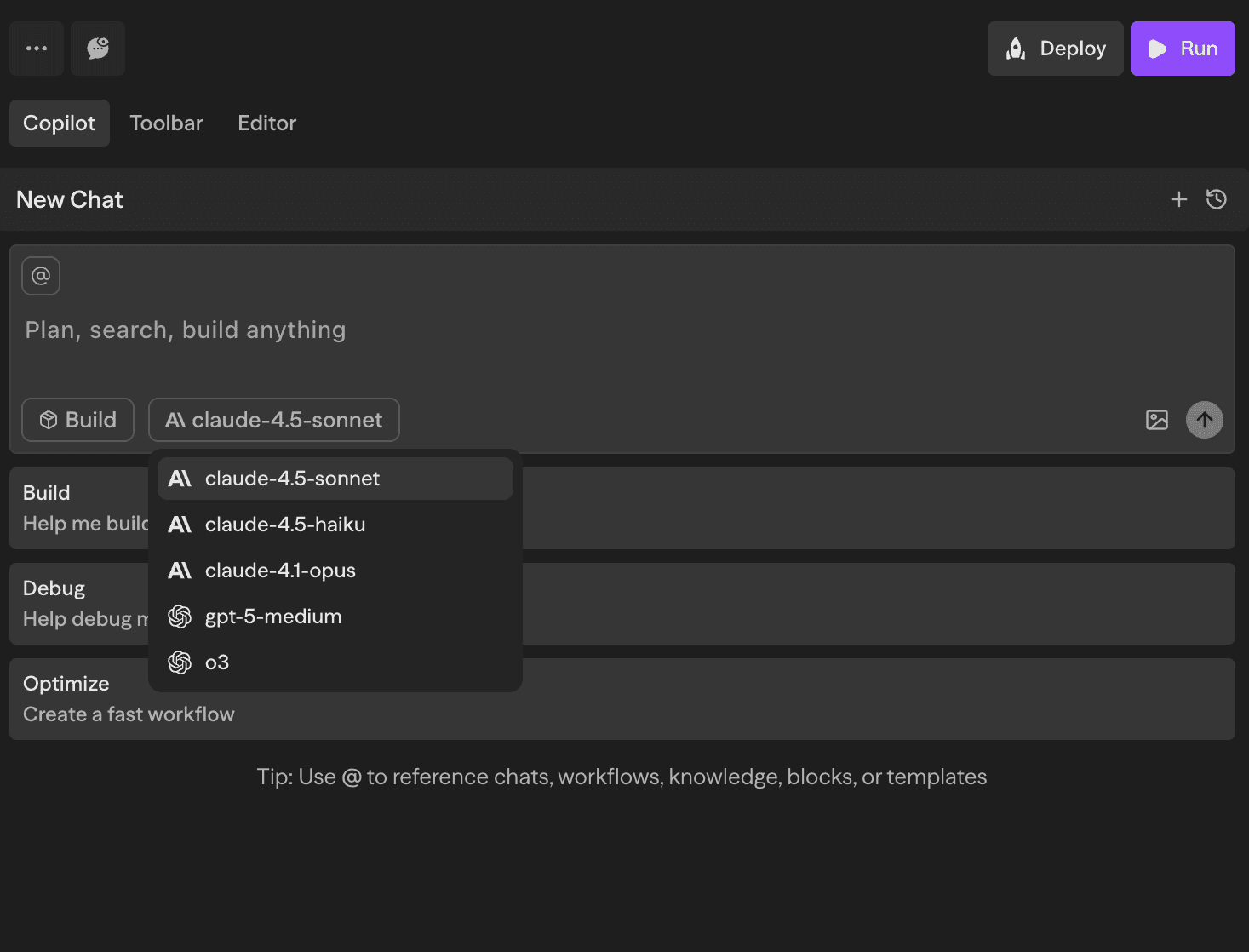
The model list is a curated roster of provider models served by SteelEngine, so it may change as new models are rolled out. It includes models whose provider has a deployment key or workspace BYOK key, excluding deployment-blocked providers and models. If a saved choice becomes unavailable, the response uses the workspace's default Chat model, subject to reasoning-effort and access checks. See Model and Reasoning Effort.
Ask "What model are you running?" to identify the model and provider for the current response. Chat receives that identity on every turn, so it reflects model switches and fallbacks. This identifies the assistant model; Agent blocks in your workflow have their own model settings.
Context
Chat automatically receives the current workflow as context. You can add more context from the input:
- Type
@to reference workflows, workflow blocks, logs, knowledge bases, tables, files, docs, or prior chats - Use the
+menu to attach workspace resources or files - Drag workspace resources into the input when you want Chat to use them
When you ask Chat to edit an existing workflow, it reads what is already there before applying changes. You do not need to restate the current blocks, connections, or settings unless you want to override them.
Chat History
Click the Chat history icon in the Chat header to see past conversations for the current workflow. You can resume any chat, delete old chats you no longer need, or click New chat to start over.
File Attachments
Click the attachment icon or drag files into the input to include files with your message. Chat can use images, PDFs, text files, JSON, XML, and other document formats as context.
Thinking Blocks
For complex requests, Chat may show an expandable thinking block while it works. These blocks make long-running edits easier to follow without mixing hidden reasoning into the final answer.
Usage
Chat usage is billed per token and counts toward your plan's credit usage. If you reach your limit, enable on-demand billing from Settings → Subscription.
See the Cost Calculation page for billing and plan details.