Credentials provide a secure way to manage API keys, tokens, and third-party service connections across your workflows. Instead of hardcoding sensitive values into your workflow, you store them as credentials and reference them at runtime.
SteelEngine supports two categories of credentials: secrets for static values like API keys, and OAuth accounts for authenticated service connections like Google or Slack.
Provider API keys for hosted models (OpenAI, Anthropic, Google, and others) are managed separately as Bring Your Own Key keys. SteelEngine applies a BYOK key automatically whenever a block calls that provider. A secret is a value you reference yourself.
Getting Started
To manage secrets, open your workspace Settings and navigate to the Secrets tab. OAuth accounts and other service connections live in the Integrations tab.

From here you can search, add, edit, and delete secrets. Workspace secrets and your personal secrets appear in separate sections of the same grid.
Secrets
Secrets are key-value pairs that store sensitive data like API keys, tokens, and passwords. Each secret has a key (used to reference it in workflows) and a value (the actual secret).
Creating a Secret
You edit secrets in place. Each section of the grid ends with an empty row. When you save, SteelEngine creates, updates, or deletes secrets to match the grid.
Choose the section — Workspace (shared with your team) or Personal (private to you)
In the empty row, enter a Key name (letters, numbers, and underscores only, e.g. OPENAI_API_KEY)
Enter the Value. A new empty row appears below for the next secret
Click Save
Optionally click Details on the saved row to add a Description for your team, then Save the details
Adding, changing, or deleting Workspace secrets requires workspace:manage_environment, which is included in the workspace Admin role. Every member manages their own Personal secrets. Permission to write a value does not grant permission to reveal it.
Reading Secret Values
For PostgreSQL-backed secrets, management readback follows the rules below. On installations using Azure Key Vault storage, the Secrets management UI and API return metadata for Vault-backed workspace entries. The trusted runtime resolves the stored reference when a workflow uses the secret.
| Caller | Value access |
|---|---|
| Workspace environment reader | Masked workspace values, except for secrets they actively administer |
User with workspace:read_environment_values | Authorized workspace values |
| Active credential Admin | That credential's value, subject to workspace access |
| Personal secret owner | Their personal values |
| Workload identity | Names-only listing and independently granted writes; no plaintext-read operation |
API keys owned by users must satisfy both the owner's authorization and the key's own scope and permission ceiling. See environment operations through MCP.
Successful management reads that return values emit an environment.values_revealed audit event containing the actor, scope, and counts, without values. Audit recording is best effort. Environment HTTP responses prevent caching, and failures return generic errors without echoing secret inputs.
Using Secrets in Workflows
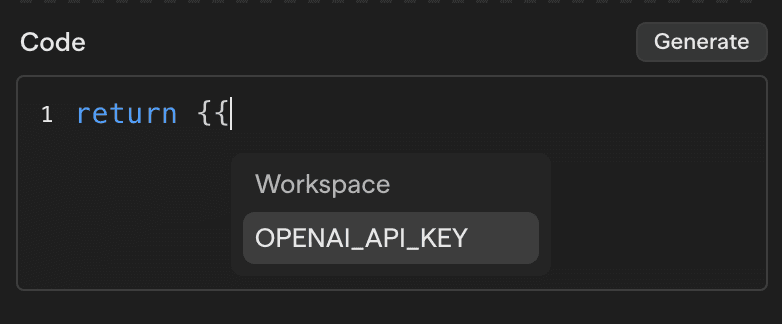
To reference a secret in any input field, type {{ to open the dropdown. It will show your available secrets grouped by scope.
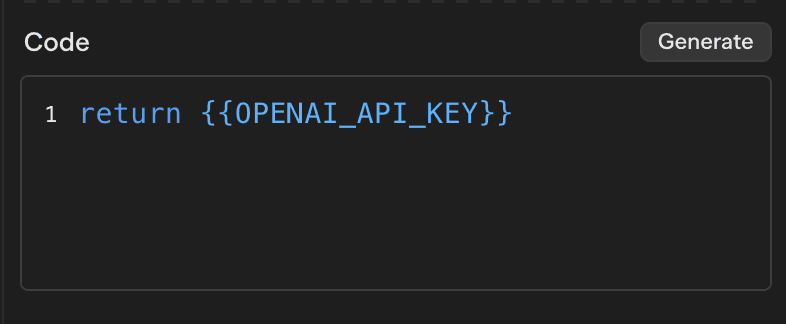
Select the secret you want to use. The reference will appear highlighted in blue, indicating it will be resolved at runtime.
Secret references resolve during execution. Diagnostic redaction does not prevent workflow code from returning a secret or sending it to another service. Control who can modify and execute secret-using workflows if those users must not be able to disclose the values.
Bulk Import
You can import multiple secrets at once by pasting .env-style content:
- Copy your environment variables in
KEY=VALUEformat - Paste them into any Key or Value cell of the section you want them in
- Review the new rows, one per line
- Click Save
The parser supports standard KEY=VALUE pairs, an optional export prefix, quoted values, comments (#), and blank lines. If the pasted text has no KEY=VALUE lines, SteelEngine inserts it into the cell as a single value.
GitHub repository review uses a separate organization-owned GitHub App. Set it up under Settings > Source Control, where you can browse or create repositories and map an environment branch. See Connect GitHub. Workflow-action OAuth accounts remain separate.
Manage saved repository connections under Settings > Integrations > GitHub Source Control with organization settings permission. Remove disconnects an unused SteelEngine connection and keeps its history; it leaves the GitHub repository and workflow-action OAuth accounts intact. An authentication error does not prove repository deletion. See connection checks and removal.
OAuth Accounts
OAuth accounts are authenticated connections to third-party services like Google, Slack, GitHub, and more. SteelEngine handles the OAuth flow, token storage, and automatic refresh.
You can connect multiple accounts per provider — for example, two separate Gmail accounts for different workflows.
Authorizing the same personal account again reuses its existing workspace connection and preserves its saved name and sharing settings. After authorization, SteelEngine identifies an already-connected account by that saved name; it does not create a second connection with the new draft name.
For Slack and Salesforce, you can also use an OAuth app your workspace owns. See Custom Apps for setup, manifest review, and connection permissions. Slack bot installations are workspace integrations; personal Slack connections use private user tokens for actions.
The Integrations tab groups available connections into:
- Workspace installations — Slack bot installations you own, that are shared with you, or that you are allowed to use.
- My connections — Accounts and credentials you connected.
- Shared with me — Connections shared with you directly or through a permission group.
Other members' personal connections are not listed merely because you belong to the workspace. Read-only shared connections can appear even when you cannot use them; each action still requires its own permission. Personal Slack user-token connections remain private to their owner.
Connecting an OAuth Account
Open your workspace Settings, go to the Integrations tab, and click Connect (or Connect / Add account next to a listed service)
In Connect Integration, search for the service and select it. If the same account is already connected elsewhere in your organization, you can reuse it here or choose Connect a different account
Enter a Display name to identify this connection (e.g. "Work Gmail" or "Marketing Slack")
Optionally add a Description
Click Connect (or Use this connection when reusing an account) and complete the authorization flow
The same Connect flow also adds two connections that do not use OAuth:
- Google Service Account: paste a JSON key file. See Google Service Accounts.
- Apprise ERP: enter a username, password, tenant URL, and system ID. After you save it, the Details panel offers a connection test.
Connecting from Chat or MCP
Chat and MCP can return a connection link when you ask to connect a service or an integration needs credentials. Open the link in your browser. If you are signed out of SteelEngine, sign in with the same SteelEngine account that requested the link; then continue to the provider's authorization screen.
Links under /connect/ expire after 30 minutes and can be used once. A Wrong Account message means you need to switch to the requesting SteelEngine account. For an expired or already-used link, ask the assistant for a new one. If you cancel the provider's authorization after opening the link, request a new link before trying again.
The link keeps the workspace and any workflow or chat context from the request. Trello and Shopify use their own authorization routes instead of this connection-link flow.
Using OAuth Accounts in Workflows
Blocks that require authentication (e.g. Gmail, Slack, Google Sheets) display a credential selector dropdown. Select the OAuth account you want the block to use. Slack credential choices include the connected workspace name so you can distinguish installations of the same app.
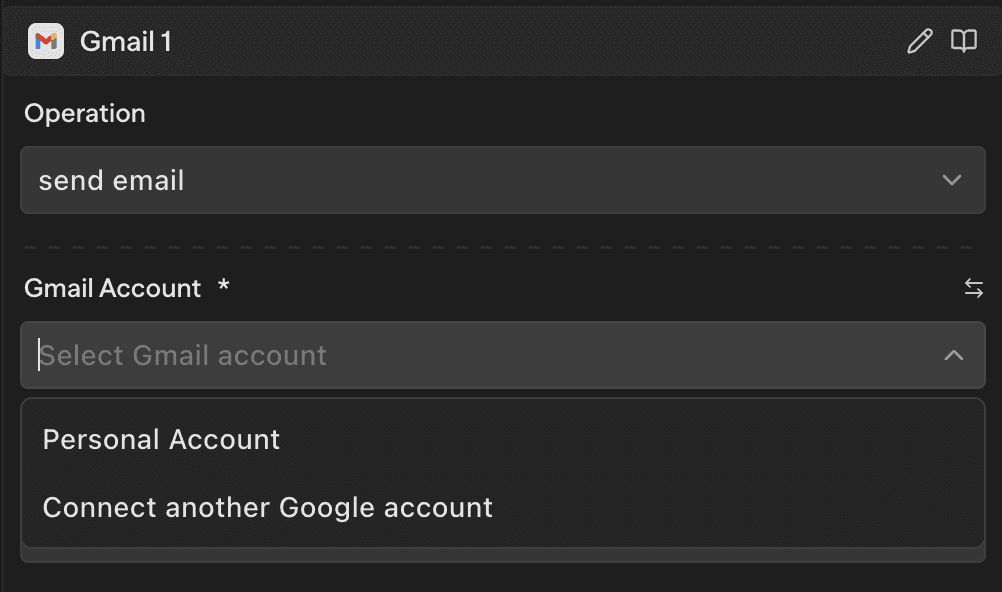
You can also connect additional accounts directly from the block by selecting Connect another account at the bottom of the dropdown.
If a block requires an OAuth connection and none is selected, the workflow will fail at that step.
Workspace vs. Personal
Credentials can be scoped to your workspace (shared with your team) or kept personal (private to you).
| Workspace | Personal | |
|---|---|---|
| Visibility | All workspace members | Only you |
| Use in workflows | Any member can use | Only you can use |
| Best for | Production workflows, shared services | Testing, personal API keys |
| Who can edit | Users with workspace:manage_environment | Only you |
| Auto-shared | Yes — all members get access on creation | No — only you have access |
When a workspace and personal secret share the same key name, the workspace secret takes precedence.
Resolution Order
When a workflow runs, SteelEngine resolves secrets in this order:
- Workspace secrets are checked first
- Personal secrets are used as a fallback — from the user who triggered the run (manual) or the workflow owner (automated runs via API, webhook, or schedule)
The fallback uses that user's own personal secrets. For a user who is not the workspace owner, it also includes personal secrets that other members shared with them. If several of those secrets use the same key, the user's own value wins. Otherwise the most recently updated one wins.
Access Control
Each credential has role-based access control:
- Admin — can view, edit, delete, and manage who has access
- Member — can use the credential in workflows (read-only)
When you create a workspace secret, all current workspace members are automatically granted access. Personal secrets are only accessible to you by default.
Sharing a Credential
To share a credential with specific team members:
- Click Details on the credential
- Under Members, pick a workspace member from Add member...
- Choose Admin or Member as the Role and click Add
The member picker shows names and email addresses so you can distinguish accounts with the same name. Search by either name or email.
Only a credential's admins can manage its members, and the last admin cannot be removed.
Best Practices
- Use workspace credentials for production so workflows work regardless of who triggers them
- Use personal credentials for development to keep your test keys separate
- Name keys descriptively —
STRIPE_SECRET_KEYoverKEY1 - Connect multiple OAuth accounts when you need different permissions or identities per workflow
- Never hardcode secrets in workflow input fields — always use
{{KEY}}references