Workspace Source Control
Capture every workspace workflow, review exact changes, commit, and open a pull request
The Source Control workspace page connects a repository and reviews all saved workflows together. Open Source Control from the workspace sidebar, then Changes. Each capture retains a fixed snapshot; later edits require another capture.
Workspace capture, review, commit, and PR creation work with workflow-level controls disabled. Workflow-level authoring is paused in code and cannot be enabled through an environment variable. Capturing a workspace does not create individual workflow protection records or lock ordinary drafts.
Read the Status Strip
A status strip sits under the page title on every tab. Its first row shows the environment, the owner/repository link, the target branch, a synchronization badge (Synced, New commits in Git, Not synced yet, Sync failed, or Connection error), and when the branch was last checked. People allowed to manage source control see Sync now there on every tab. Details expands the managed path, the latest commit in Git, the synchronized commit, and the last check time. Manage environment opens the Settings tab.
The second row shows the Latest snapshot for admins of an authoring workspace: its state badge, workflow count, capture time, and PR link. A workspace consuming a Git package shows Deployment instead, with the synced and live commits. This depends on the package connection, not whether its branch lock is enabled. Connection and synchronization problems appear under the strip and say what to do next.
What Sync now does
Sync now checks the branch connected to this workspace and reconciles its managed workflow definitions with Git. It validates eligible changes before applying them, reports Already up to date when nothing needs to change, and can retry a missed webhook or failed synchronization. Refresh reloads recorded status without requesting that synchronization.
For example, after a promotion PR merges into main, a Prod workspace connected to main synchronizes the reviewed package from its configured folder. Deploy manually leaves the synchronized drafts ready for Deploy synced version. Deploy automatically publishes after validation. See deployment policies for receiving workspaces.
Publishing local changes follows the opposite direction: capture, review, commit, and merge a PR into Git. Synchronization does not create that outgoing commit or merge a PR. Local resource assignments and credentials remain in the destination workspace.
Choose a View
| View | Use it to |
|---|---|
| Changes / Deployment | Authoring workspaces use Changes to capture, review, commit, and open a PR. Workspaces consuming a Git package use Deployment to synchronize approved definitions and deploy them |
| Releases | See what each workflow has approved in Git and what is running now, with retained deployment versions |
| Settings | Choose the repository, branch, and package; configure branch locking, workflow editing, and deployment independently; inspect sync and deployment jobs |
Older links to ?view=overview open Changes. The original Settings > Source Control page uses the same configuration.
Set Up the Repository and Upstream Branch
- An organization admin enables GitHub Source Control and connects the GitHub App. Confirm its displayed name and site before authorizing access.
- Open workspace Source Control > Settings. Choose an accessible repository, or create one in an authorized GitHub account or organization.
- Choose the repository and Workspace branch. Search existing branches or choose Create branch…, enter its name, select Create from, and create the Git branch. Choose Publish workflows to Git to capture workflows here, or Receive workflows from Git to import a reviewed package from that branch.
- Set the branch lock, workflow editing, and deployment policy, then select Connect workspace. For authoring, you might use
dev; the PR targets exactly this configured branch, even when GitHub's default is different.
Saved connections show a readable summary. Select Change connection to edit it, then Save connection or Cancel. The top Workspace branch selector supports confirmed connection changes and branch creation. Promote to branch opens a GitHub PR into the next environment’s branch without reconnecting this workspace. Authorized managers can change Workflow editing or Deployment separately. Saving settings never synchronizes or deploys on its own.
Self-hosted operators must apply the current migrations, including 0299_repository_workspace_connections, and roll out compatible web, realtime, and Worker services. Existing production workspaces retain their branch lock and Git-only editing defaults.
With 0300_git_only_workspace_editing, Git changes only is available independently of package ownership. Authorized managers can select it, or restore Allow direct edits, directly from the Workflow editing menu. The change saves immediately and preserves the repository and branch connection.
Each workspace has one active binding. One authoring workspace owns a repository/branch/path combination; several destination workspaces may consume it. Sources and destinations may be in different organizations or installations. Connect GitHub covers installation access and operator configuration. The branch connection walkthrough shows the current settings controls.
Capture, Review, Commit, and Open a PR
These actions require workspace settings administration and read access to every workflow. The server rejects the complete operation if any workflow is inaccessible; it never creates a partial capture for that user.
- Save and test your workflow drafts, then open Changes.
- Select Capture workspace. Before the first capture, the tab shows Start with a snapshot of this workspace with that button. Every active workflow, its folder placement, and the folder hierarchy enter an immutable snapshot. The latest capture appears as one card: its header shows the changed-file count and a four-step progress row (Review, Commit, Open PR, Merge). The strip carries its state, workflow count, and capture time.
- Review the workflow names and their Added, Updated, Removed, or Unchanged status. Filter chips (All, added, updated, removed) and Search workflows narrow the list; Expand changed opens every changed workflow. Read summaries such as Prompt changed, Code changed, Step added, and Connections changed. Expand a workflow, then one of its Git files, to read its line diff with added and removed lines marked. Renames show the previous name; unchanged workflows remain listed as included. Archived workflows appear as removed when they existed in the previous upstream snapshot. Workspace folders and ordering contains workspace structure changes. Files outside the workspace snapshot directory are preserved.
- In the card footer, check I reviewed this captured snapshot, enter a commit message, and select Commit snapshot. SteelEngine creates a dedicated branch and commits exactly the retained bytes. If upstream moved after capture, capture and review again. After a commit is rejected or the connection breaks, the server refuses capture and commit, so both stay disabled until the strip's problem is fixed. If the strip reports Sync failed but the connection and binding are still active, both stay available and the strip only warns.
- Select Create pull request. Follow the GitHub link, review the entire snapshot, and merge according to the repository's branch rules.
- While the page is open, it checks for the merge about every 2 minutes and updates by itself; select Check if merged to check now. SteelEngine verifies the PR head, configured target, merged ancestry, and exact files on the reviewed commit, merge commit, and current upstream branch. An unmerged PR reports Not merged yet. Checking stops when waiting cannot change the answer: a PR closed without merging, repository settings that changed, or a merged PR whose branch no longer matches the capture because the merge changed its content or the branch changed afterward. Capture workspace then becomes the next step. Capturing again proposes the workspace's version and replaces what is on the branch.
A manual Not merged yet result does not stop the background check. If a later check finds that the merged branch no longer matches the capture, the card updates with that result and offers Capture workspace.
Changing a workflow's Execution timeout changes its captured metadata. Capture again and merge the updated review to promote the new timeout.
Review warns when a captured file holds a credential-shaped value. It names the file, marks it as new in this capture or already on the branch, and gives the next step for the snapshot's state. The warning does not block the commit, and new PR bodies list the flagged paths, never the values. Removing a value later does not erase it from Git history, so rotate any value that reached Git. A JSON file that cannot be parsed is reported as Could not scan.
The following GIF shows a local rehearsal with two workflows captured and reviewed together. The workspace PR targets dev; GitHub review and merge happen before Check if merged. The walkthrough is assembled from captured browser steps; waiting time and the GitHub merge screen are omitted.
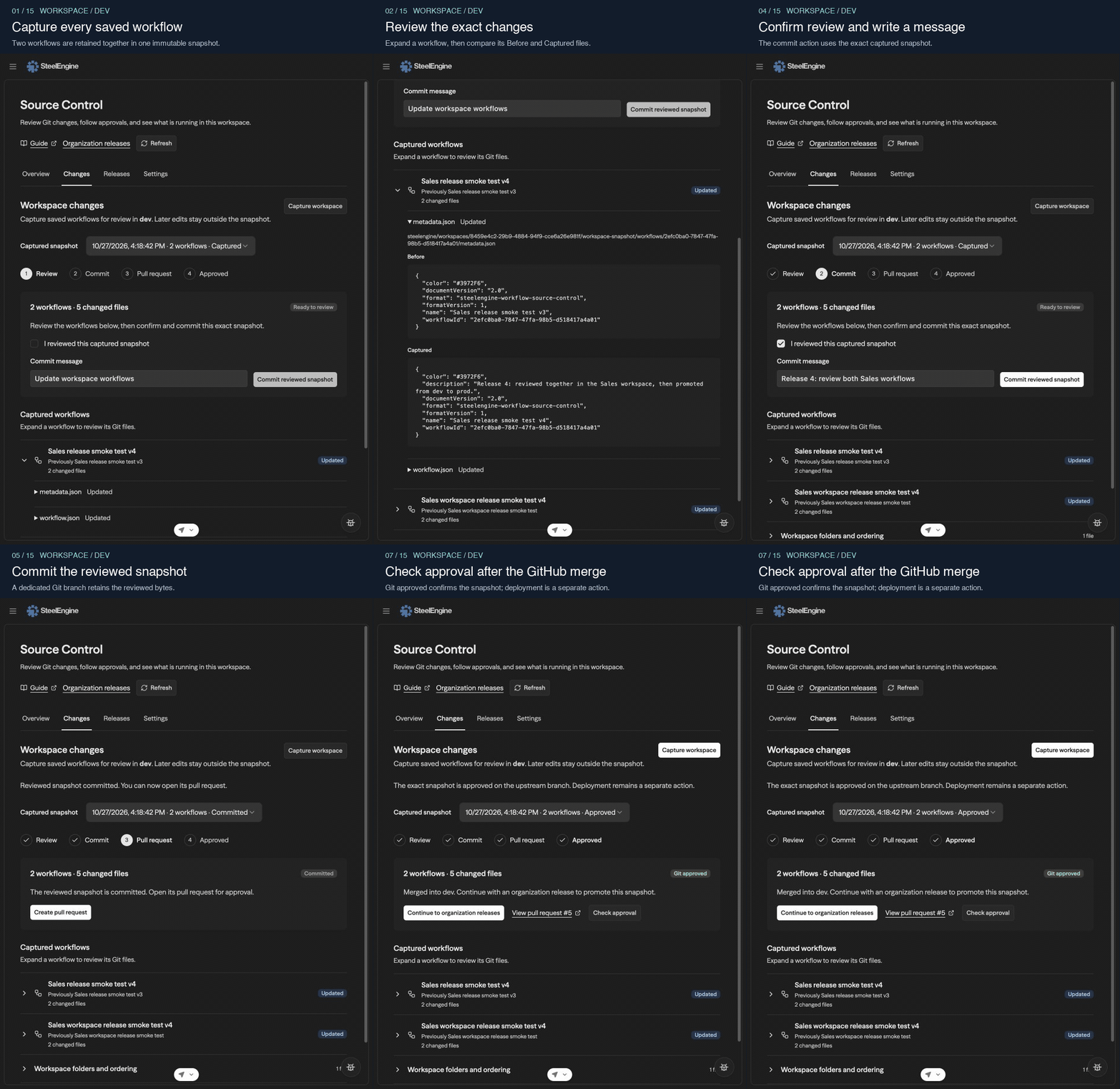
The branch connection settings walkthrough shows the current repository, branch, package, and policy selectors. The numbered instructions above provide the workspace capture procedure without animation. For coordinated organization releases, continue to Organization Releases.
After a commit, the next action moves to a shaded band at the top of the card, and the finished review folds behind Show. Before a commit, it stays below the review. Snapshot details lists the upstream branch, the commit the capture was taken from, and the reviewed commit. After approval, the band offers See what to deploy, which opens Releases with each workflow's approved and live versions in this workspace, and self-hosted installations with organization promotion enabled also offer Organization releases. To deploy to a production workspace, merge a promotion PR into its branch and deploy there.
A lost commit or PR response can be retried without creating another commit or PR. Previous captures below the card lists older snapshots with their state and workflow count; select a row to open one (the URL carries ?capture=<id>), and Back to latest returns. An older capture is read-only, except that it can still open its pull request or check whether it merged. Only the latest capture is checked automatically. The list shows five, Show all expands it, and the server keeps the latest 20. A capture matching upstream is Up to date and has nothing to commit.
Merging the capture PR approves the snapshot. A destination can follow that branch or receive the package through a reviewed promotion PR into another branch, across organizations or installations. Synchronization and publication follow its deployment policy. See Branch-connected workspaces. Organization Releases coordinates releases across the workspaces it manages.
What the Snapshot Contains
<managed-path>/workspace-snapshot/
  workspace.json
  workflows/<workflow-id>/
    metadata.json
    workflow.json
    layout.json
    bindings.json
    nodes/
The manifest records the source workspace identity, its name and installation/organization origin when available, stable workflow IDs, names, folder placement, ordering, and folders. Receiving setup uses workspaceName from this committed workspace.json as its label, falling back to the managed path when no name is recorded. Source identity is provenance from Git; the destination does not look up a live development workspace. Workflow bundles include sanitized definitions, prompts, code, variables, interface metadata, layout, and logical resource requirements. Secret values, provider tokens, credential assignment targets, runtime data, and deployment versions stay outside Git. Other workspace objects such as apps, databases, documents, and knowledge bases are outside this capture format.
One capture supports at most 200 workflows, 4,096 files, and 16 MiB. A workflow without a readable saved definition fails the capture with its name; no workflow is silently omitted.
Promote the Approved Workspace
Connect an empty destination workspace to a repository, branch, and existing workspace package or expected package folder. The repository carries the source identity, so there is no development-workspace selector or same-organization requirement. The destination uses its own authorized repository connection, local credentials, environment values, and Worker. Follow Branch-connected workspaces for setup and the current settings walkthrough.
For a new repository, follow the Dev, QA, and Prod walkthrough. You may create and connect Prod first; save its expected package folder and keep it empty while it waits for the first reviewed release. Select the existing package to receive it; Publish workflows to Git creates an authoring connection, even with Git changes only enabled.
Use Sync approved changes to verify and prepare the reviewed package. Deploy manually leaves it ready for Deploy synced version; Deploy automatically publishes after validation. New schedules set to Start paused leaves newly promoted schedules paused until you resume them. Allow direct edits lets permitted users edit local drafts, and later synchronization replaces them from Git. Git changes only prevents those draft edits. Locking or unlocking the branch changes neither policy.
On a self-hosted installation with organization promotion enabled, workspace approval becomes a prerequisite once this workspace has captures. Organization capture requires a merged workspace snapshot matching the current workflows and folders. Later edits, a retargeted binding, or changed upstream snapshot files require another review. The organization release records the workspace commit as workflow provenance.
Workspaces with their own Source Control connection release independently. They are excluded from organization capture, deployment, and rollback, even if they use the same repository as the organization.
Existing Workflow Protection
Existing protected workflows retain their protections, synchronization, and deployment history. Their approved and live versions appear under Releases by workflow on Releases, grouped under Needs you (Needs attention for readers who cannot act), In progress, Up to date, and Not deployed, one row per workflow with its state badge, approved commit, live version, and Previous versions. Without any Git-backed deployment, that tab shows No releases yet. Individual workflow setup, editor Git actions, and the older editing-branch controls remain unavailable, even if the former environment opt-in is set.
The retained legacy Protect and Edit and Review and Deploy guides describe that paused flow for reference. Workspace snapshots do not require it.
Receiving workspaces also show Workspace release history on Releases. Select Roll back on a previous deployed package, review the impact, and record a required reason before creating its rollback PR. After deployment, the row shows the restored release, reason, and originating PR. Git-created reverts use the same history; missing Git reasons are shown explicitly. See Roll back a workspace release.