Branch-connected workspaces
Connect a workspace to a Git repository, branch, and package, with separate locking, editing, and deployment policies
A workspace follows a repository, branch, and workspace package. Git is the connection between environments: the authoring workspace can be in another organization or on another installation. The destination does not need a live connection to that workspace.
Each organization authorizes its own GitHub repository connection. Sharing a repository does not grant access to another organization or copy its credentials, users, or data.
Start with a new repository and Dev, QA, and Prod
Each workspace follows its own branch in the same repository. Promote the same workflow package with reviewed pull requests:
| SteelEngine workspace | Workspace branch | How changes arrive |
|---|---|---|
| Dev | develop | Capture workflows here and merge their reviewed snapshot PR into develop |
| QA | qa | Merge a promotion PR from develop into qa, synchronize, and test |
| Prod | main | Merge a promotion PR from qa into main, synchronize, and deploy |
Workspace names and branch names are your choice. They do not create a parent-child relationship between workspaces.
- Connect or create a repository. It needs an initial commit and a
mainbranch. Create and connect repository initializes a README for you. - Create Dev, QA, and Prod workspaces in any order. You can configure Prod immediately: select the repository and
main, choose Receive workflows from Git, and keepsteelengineas the Expected package folder (or choose the folder Dev will publish). Set Git changes only, Lock to branch, and Deploy manually, then Connect workspace. Prod saves the connection as Waiting for first release. Keep receiving workspaces empty, including archived definitions, until their first package is verified. - In Dev's Source Control > Settings, select the repository. Open Workspace branch, choose Create branch…, enter
develop, and selectmainunder Create from. Select Create branch to create the Git ref. Choose Publish workflows to Git, keep the default repository folder or set your own, choose Allow direct edits, and select Connect workspace. - In QA's settings, select the same repository and create
qafrommainusing the branch selector. Choose Receive workflows from Git. If the branch has no package yet, use the same Expected package folder as Dev and select Connect workspace. QA saves its receiving connection and waits for the first reviewed package; do not choose publishing as a substitute for receiving. - Build and save workflows in Dev. In Changes, select Capture workspace, review the files, commit the snapshot, and create its pull request. Review and merge into
develop, then select Check if merged. - From Dev, select Promote to branch at the top. Select
qaas Target branch, then Review pull request in GitHub. Review and merge the PR fromdevelopintoqa. - QA's saved connection verifies the reviewed package at its configured folder and pins its source identity. Open QA's Source Control > Deployment, set any local resource assignments, synchronize approved changes, and deploy according to QA's policy. Test this version before promoting it. A missing assignment blocks import or deployment; the verified package identity remains pinned while you finish setup.
- In QA, select Promote to branch, select
main, and open the GitHub review. This promotesqaintomainwhile QA continues to followqa. Review and merge the PR. - Prod's saved connection receives the reviewed package on
main. Open its Source Control > Deployment, configure Prod's own resource assignments, select Sync approved changes if the new version has not arrived, check the imported workflows, and select Deploy synced version. A merged PR alone does not mean a version is live.
For later releases, repeat Dev's capture and review, promote develop into qa, test QA, and promote qa into main. A promotion opens GitHub review; it does not reconnect the sending workspace. GitHub compares the latest branch heads, so confirm that the reviewed changes match the version you tested.
Can I create Prod first?
Yes. Create Prod first and keep it empty while preparing the repository and Dev. You can authorize the repository connection before publishing any workflows.
Select the repository and branch, choose Receive workflows from Git, and enter the Expected package folder when the branch has no package yet. Select Connect workspace to save a receiver in Waiting for first release. It checks only that branch and folder; it does not guess a source workspace or import another package from elsewhere in the repository.
When a reviewed package arrives, synchronization verifies the exact package bytes against a merged pull request into the selected branch, then pins the package identity from Git. Missing or unreviewed packages never become live. After the identity is pinned, a different source identity is rejected even if the first synchronization still needs resource assignments. Settings left open before identity discovery must refresh before saving.
If an empty Prod workspace was previously configured to publish its own package, select Change connection, choose Receive workflows from Git, and save either its existing package or the expected folder for a future package. Changing Workflow editing alone does not change the workflow direction.
Where workspace package names come from
Receiving setup reads workflow packages from the selected Git branch. For example, the name Dev Workspace comes from the workspaceName field in steelengine/workspace-snapshot/workspace.json. SteelEngine writes that name when capturing the source workspace; the selector later reads the committed file. If the manifest has no name, the selector shows its managed path.
The manifest's workspaceId identifies the package's source. Package details from Git also shows the source installation and organization when recorded. These values describe the captured package; they do not require permission to browse a live Dev workspace. Renaming a workspace in SteelEngine alone does not rewrite an already committed package label.
Prod still keeps its own workspace name. Selecting a package named Dev Workspace tells Prod which definitions to receive. The repository and branch selected in Prod's settings determine where it reads those definitions, so the source can be in another organization or on a separate self-hosted installation.
Connect a workspace
- Open Source Control > Settings and connect GitHub if needed.
- Under Repository connection, choose a repository and its Workspace branch. Search existing branches or select Create branch…. Creating a branch asks for a name and Create from branch; it creates the Git ref immediately without connecting or deploying the workspace. Existing branches are never overwritten.
- Choose Publish workflows to Git to capture workflows authored here, or Receive workflows from Git to import reviewed definitions from the selected branch. This choice is separate from workflow editing and deployment policies.
- Publishing uses the Repository folder shown in settings. Receiving discovers that folder from Git. One package is selected automatically; multiple packages are listed by name and path. If there is no package, set Expected package folder and save the waiting receiving connection. Check branch again refreshes discovery before saving.
- Configure the branch lock, workflow editing policy, and deployment policy, then select Connect workspace.
An initial receiving connection requires no workflows or folders, including archived definitions. An existing empty repository binding can be reused. Workspaces managed by Organization Releases keep their connection authority there.
Saving settings does not synchronize or deploy an existing commit. Use Sync approved changes to check and prepare the receiving package. Later Git events and scheduled checks use the saved deployment policy.
Change an existing connection
Saved settings show a readable summary of the repository, workspace branch, workflow direction, and package folder. Select Change connection to edit them, then Save connection. Cancel restores the saved values. A Git branch created during editing still exists after canceling; creation is a separate action.
The Workspace branch selector at the top also lists branches and lets authorized managers create one. Selecting another branch asks you to confirm the connection change. It preserves the branch lock, editing policy, and deployment policy. Once a receiving workspace has pinned a package identity, the selected branch must contain that same package. Before the first release, a waiting receiver can follow another empty branch. Use Refresh in the branch menu if a recently created branch is missing.
Promote to branch uses the current workspace branch as Source branch and your selected Target branch as the destination. It opens an existing review PR when one is available, or the GitHub comparison for a new PR. It leaves the workspace connection in place.
Select Check PR status after GitHub review. The dialog distinguishes an open PR, a merged PR covering the current source head, and branches with no new commits to promote. A previous merge does not count as promoting newer source commits. After merge, continue in the receiving workspace’s Source Control > Deployment: synchronize approved changes, resolve resource assignments, then deploy manually or confirm that automatic deployment is Live. Remote deployment status is verified in that installation; the sending workspace never infers that it is live from GitHub alone.
Workflow editing and Deployment remain separate settings. An authorized manager can change either policy without entering connection editing. Unlock changes the branch-lock policy.
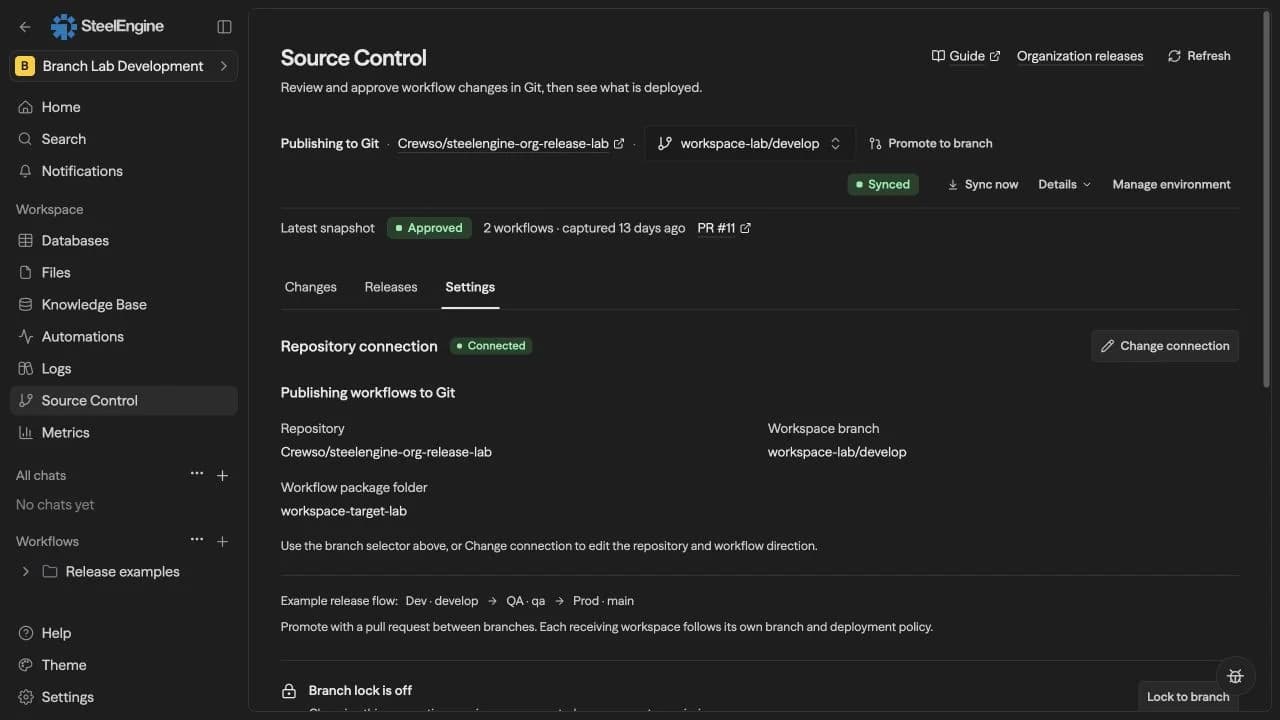
Settings walkthrough
This silent walkthrough uses captured local browser states to show the saved summary, branch creation, publishing or receiving workflows, and promotion target selection. It does not show GitHub review, merge, or a new deployment. The written instructions on this page cover the same steps.
Open the settings walkthrough as an MP4 to pause or seek through it.
Prod-first release walkthrough
This local rehearsal starts with Prod connected to an empty branch before Dev exists. The saved receiver waits for the first release. Dev then promotes to QA; QA synchronizes without going live until its manual deployment is confirmed. A second reviewed PR promotes QA to Prod, where the scheduled check synchronizes and deploys automatically.
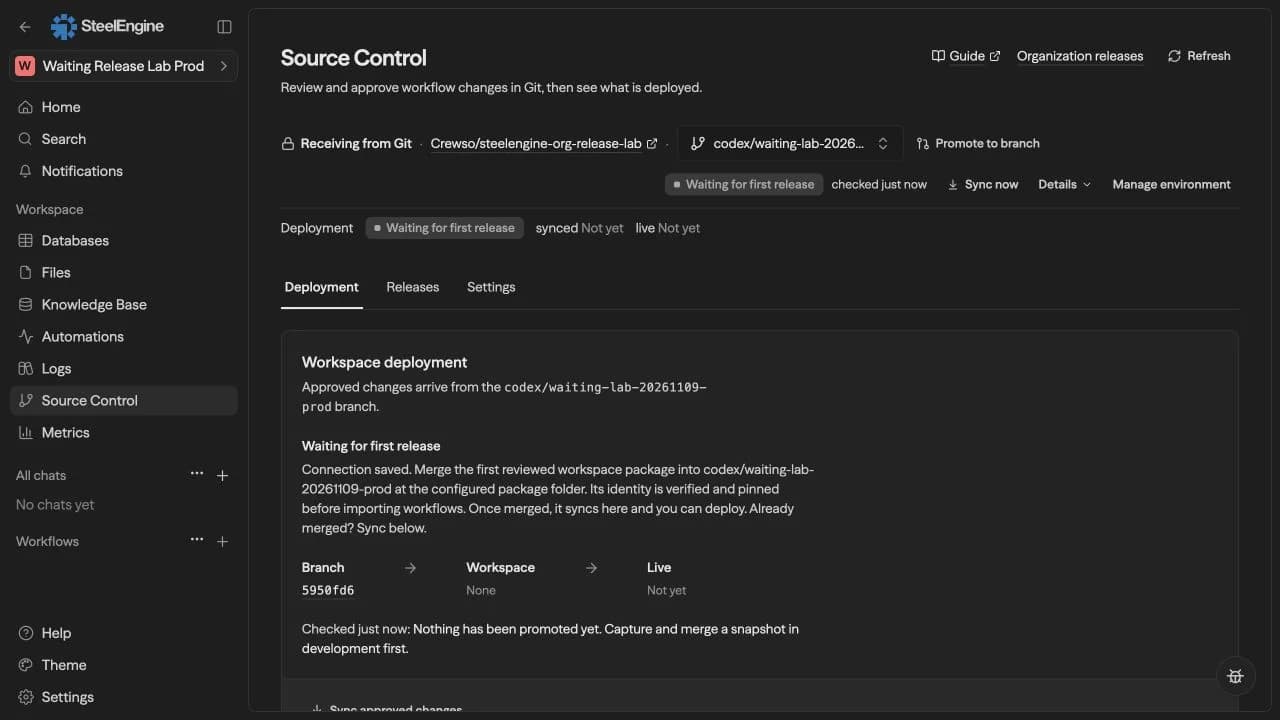
The silent walkthrough uses screenshots from the actual rehearsal, including merged PR handoffs and the final Live state. Dev ran on one local installation; QA and Prod ran on another with a separate database. GitHub review and merge happened between the captured states. This demonstrates the workflow; follow your own review and deployment policies.
Open the Prod-first walkthrough as an MP4.
Branch lock and permissions
Lock to branch protects the workspace's repository, branch, and package mapping. It is independent of workflow editing and deployment.
Workspace admins, organization admins, and people whose effective policy grants Manage source control can select Change connection, Unlock, or Lock to branch. Other workspace readers can inspect the connection but cannot change it. The same permission is enforced on the server, and connection and policy changes are audited.
An authorized manager can change a locked connection directly without first unlocking it. Settings revisions prevent one person's stale form from overwriting another person's changes. Connection changes wait while a synchronization, deployment, or recovery is in progress. Changing a branch or package invalidates the synchronized revision; the currently running version remains until another approved deployment.
Existing legacy workflow protection and open workflow branches must be resolved before retargeting an authoring binding. The branch lock itself can still be changed by an authorized manager.
If an authoring connection still supplies legacy destinations, save those destinations through Change connection first to convert them to Git package provenance. Until that conversion, changing the authoring repository, branch, or path is blocked so existing destination synchronization continues working.
Workflow editing
- Git changes only: local workflow and folder definitions are read-only in both authoring workspaces and destinations. The policy covers creation, renaming, deletion, graph edits, and wire ties. Existing Git synchronization remains available for managed workflows; destinations synchronize reviewed workspace packages.
- Allow direct edits: people with workflow editing permission may edit local drafts. For a destination receiving an external package, synchronization replaces those drafts with Git content. This does not permit bypassing the Git approval and deployment boundary.
Credentials, environment values, and workspace data retain their own permissions. Unlocking a branch does not enable direct workflow editing or automatic deployment.
To change the policy on an existing connection, open Source Control > Settings > Workflow editing and choose Git changes only or Allow direct edits. The change saves immediately; Change connection is only needed to edit the repository, branch, or package. The same administrator and policy permissions apply to both directions.
Editing policy does not change package ownership or turn an authoring workspace into a destination. Existing workflow IDs, drafts, and live versions are preserved. Capturing the current authoring workspace remains available while its definitions are read-only; changing the policy does not register additional workflows for synchronization.
Review, synchronize, deploy
-
Build and test workflows in an authoring workspace. Capture the workspace, review its files, commit the snapshot, and merge its PR into the authoring branch.
-
If the destination follows another branch, merge a promotion PR containing that package into the destination branch. A destination may also follow the branch on which the capture PR itself was merged.
-
Synchronization verifies the repository identity, selected branch, exact package inventory, and a merged PR that changes this package and contains the same reviewed bytes. An unrelated PR that merely inherits package files does not approve them. It rejects later direct edits to the package and merge resolutions that differ from the reviewed PR head.
-
The package's source workspace identity must match the selected package. Workflow and folder identities remain stable within the destination across releases and authorized branch changes.
-
With Deploy manually, synchronization prepares the package and Deploy synced version makes it live. With Deploy automatically, a validated synchronization deploys it. A deployment makes every workflow in the package live and starts its schedules. A schedule that someone paused in the receiving workspace stays paused; a schedule in a workflow that is new to the workspace starts.
To promote workflows without starting them, set New schedules to Start paused in the receiving workspace's Settings > Source Control. A schedule that is new to the workspace, or that belongs to a workflow you undeployed there, then arrives paused, and you resume the ones that should run. Schedules that are already running keep running on the new version. The setting applies to schedules only: API, webhook and chat triggers of a deployed workflow are live as soon as it deploys.
Portable package approval checks the branch's 100 most recently updated closed PRs for a matching merged approval. If no match is found, merge a new reviewed PR containing the package into the selected branch. Branch creation alone does not approve a package.
GitHub limits PR file listings to 3,000 files. Approval verification refuses PRs that reach that limit because their file list might be incomplete. Use a smaller reviewed package PR.
Separate installations need their own GitHub App/webhook connection and background Worker. A source installation does not report a remote destination as deployed merely because a PR was merged. Organization Releases coordinates the workspaces without their own Source Control connections.
Release from a CI pipeline
A pipeline such as GitHub Actions can check a pull request against a receiving workspace before it merges, and then report or start the release after it merges. Every call uses one endpoint on the installation that owns the receiving workspace:
https://<your-steelengine-host>/api/source-control/workspaces/<workspace-id>/ci
Send a workspace API key in the x-api-key header. Reading status needs read access to the workspace. Starting a validation or a deployment needs a key whose owner can manage Source Control there, the same permission that Sync approved changes requires.
| Request | What it does |
|---|---|
POST with {"action":"validate","commitSha":"<40-character SHA>"} | Reads the package at that commit and checks it against this workspace: workflow definitions, resource assignments, environment variables and credentials the workflows use that this workspace does not have, and references to tables, files, or workflows outside the package. Nothing in the workspace changes. It does not check that the commit was approved, because the pull request has not merged yet. |
POST with {"action":"deploy","commitSha":"<40-character SHA>"} | Synchronizes and publishes that commit, with every check a manual synchronization runs. The commit must be the head of the workspace branch. |
GET with ?deploymentId=<id> | Reports a job that a POST started: status (queued, running, succeeded, failed, or superseded) and a summary. A failed validation has one line for every rejected workflow. |
GET with ?commitSha=<40-character SHA> | Reports the release of that commit, including the one a merge starts on its own. status is pending until SteelEngine has seen the commit, and live is true once the commit is published. |
Both POST calls return a deploymentId and finish in the background. Validation results appear only in the pipeline, not in the workspace's deployment status.
Merge to deploy
Select Deploy automatically on the receiving workspace. A merge into its branch then synchronizes and publishes without any pipeline call, so the pull request, with its reviews and required checks, is the release approval. The pipeline validates each pull request and, after the merge, waits for the release and fails if it does not go live.
Create one GitHub environment per branch, named after the branch, with the variables STEELENGINE_URL and STEELENGINE_WORKSPACE_ID and the secret STEELENGINE_API_KEY. Make the job a required status check to block pull requests that the workspace would reject.
name: SteelEngine release
on:
  pull_request:
    branches: [staging, main]
  push:
    branches: [staging, main]
jobs:
  steelengine:
    runs-on: ubuntu-latest
    environment: ${{ github.base_ref || github.ref_name }}
    env:
      API: ${{ vars.STEELENGINE_URL }}/api/source-control/workspaces/${{ vars.STEELENGINE_WORKSPACE_ID }}/ci
      STEELENGINE_API_KEY: ${{ secrets.STEELENGINE_API_KEY }}
    steps:
      - name: Validate the pull request
        if: github.event_name == 'pull_request'
        run: |
          id=$(curl -sS -f -X POST "$API" \
            -H "x-api-key: $STEELENGINE_API_KEY" -H 'content-type: application/json' \
            -d '{"action":"validate","commitSha":"${{ github.event.pull_request.head.sha }}"}' \
            | jq -r .deploymentId)
          for attempt in $(seq 1 120); do
            curl -sS -f -o status.json -H "x-api-key: $STEELENGINE_API_KEY" "$API?deploymentId=$id"
            case "$(jq -r .status status.json)" in
              succeeded) jq -r .summary status.json; exit 0 ;;
              failed|superseded) jq -r .summary status.json; exit 1 ;;
            esac
            sleep 15
          done
          echo 'Timed out waiting for SteelEngine'
          exit 1
      - name: Wait for the release
        if: github.event_name == 'push'
        run: |
          for attempt in $(seq 1 160); do
            curl -sS -f -o status.json -H "x-api-key: $STEELENGINE_API_KEY" \
              "$API?commitSha=${{ github.sha }}"
            if [ "$(jq -r .live status.json)" = true ]; then
              echo 'Live'
              exit 0
            fi
            case "$(jq -r .status status.json)" in
              failed|superseded) jq -r .summary status.json; exit 1 ;;
              succeeded) echo 'Synchronized but not published. Select Deploy automatically.'; exit 1 ;;
            esac
            sleep 15
          done
          echo 'Timed out waiting for SteelEngine'
          exit 1
Deploy from the pipeline
To let the pipeline control the deployment, as in a standard CI/CD flow, keep Deploy manually selected on the receiving workspace and replace the Wait for the release step with one that sends deploy for the merged commit. A merge then publishes only when this job runs, and required reviewers on the GitHub environment hold the job, and so the release, for approval.
      - name: Deploy the merged commit
        if: github.event_name == 'push'
        env:
          PUSH_SHA: ${{ github.sha }}
        run: |
          # A merge starts a synchronization on its own; wait for it, then deploy.
          id=''
          for attempt in $(seq 1 240); do
            code=$(curl -sS -o start.json -w '%{http_code}' -X POST "$API" \
              -H "x-api-key: $STEELENGINE_API_KEY" -H 'content-type: application/json' \
              -d "{\"action\":\"deploy\",\"commitSha\":\"$PUSH_SHA\"}")
            if [ "$code" = 200 ]; then id=$(jq -r .deploymentId start.json); break; fi
            reason=$(jq -r '.code // empty' start.json 2>/dev/null || true)
            if [ "$code" = 409 ] && [ "$reason" = release_in_progress ]; then
              echo 'Another release is running for this workspace; waiting'
              sleep 10
              continue
            fi
            if [ "$code" = 409 ] && [ "$reason" = branch_moved ]; then
              echo 'A newer commit is on this branch; its run deploys instead.'
              exit 0
            fi
            echo "SteelEngine refused the deployment (HTTP $code)"
            cat start.json
            exit 1
          done
          if [ -z "$id" ]; then echo 'Timed out waiting for the running release'; exit 1; fi
          for attempt in $(seq 1 480); do
            curl -sS -f -o status.json -H "x-api-key: $STEELENGINE_API_KEY" "$API?deploymentId=$id"
            case "$(jq -r .status status.json)" in
              succeeded) jq -r .summary status.json; echo 'Deployed'; exit 0 ;;
              failed|superseded) jq -r .summary status.json; exit 1 ;;
            esac
            sleep 5
          done
          echo 'Timed out waiting for SteelEngine'
          exit 1
A merge still synchronizes on its own first, so deploy answers 409 with code release_in_progress until that finishes; the step waits and sends it again. It answers 409 with code branch_moved when the commit is no longer the branch head, and the step leaves that deployment to the newer commit's run. This path synchronizes the package a second time before publishing.
Workspace resources
The package records credential, environment, and model-provider requirements. Under Workspace resource assignments, assign this workspace's credential IDs, environment keys, and provider IDs. Secret values are never copied from the source or committed to Git.
Create referenced environment keys in this workspace's Secrets settings. For example, the same {{BRANCH_LAB_LABEL}} placeholder can resolve to a different value in each environment.
This flow copies workflow definitions and folders. Tables, knowledge bases, files, custom tools, and skills must already resolve locally. Included child workflows receive stable destination IDs and their selectors are remapped. Dynamic or unresolved child-workflow references prevent synchronization.
Roll back a workspace release
Open Source Control > Releases > Workspace release history in the receiving workspace. The list shows up to 100 recent successful workspace deployments, with the current commit marked Live. A synchronized draft that was never deployed is not a rollback target.
- Select Roll back beside a previous deployed package. Source Control managers have this action; workspace readers can view the history.
- Review Live now, Restore, and the connected branch. The preview shows how many workflows and package files will be restored and how many managed workflows added later will be retired on deployment.
- Enter Why are you rolling back? This is required. The reason is recorded in the Git commit, rollback PR, and workspace audit log, and is visible to people with repository access.
- Select Create rollback PR, review its changes in GitHub, and merge into the connected branch. Only the selected workspace package is restored; other repository files remain unchanged. Retrying the same request reuses its prepared branch and PR.
- Open Deployment, synchronize approved changes, and confirm Live. With manual deployment, choose Deploy synced version. With automatic deployment, a validated sync deploys the restored package according to the saved policy.
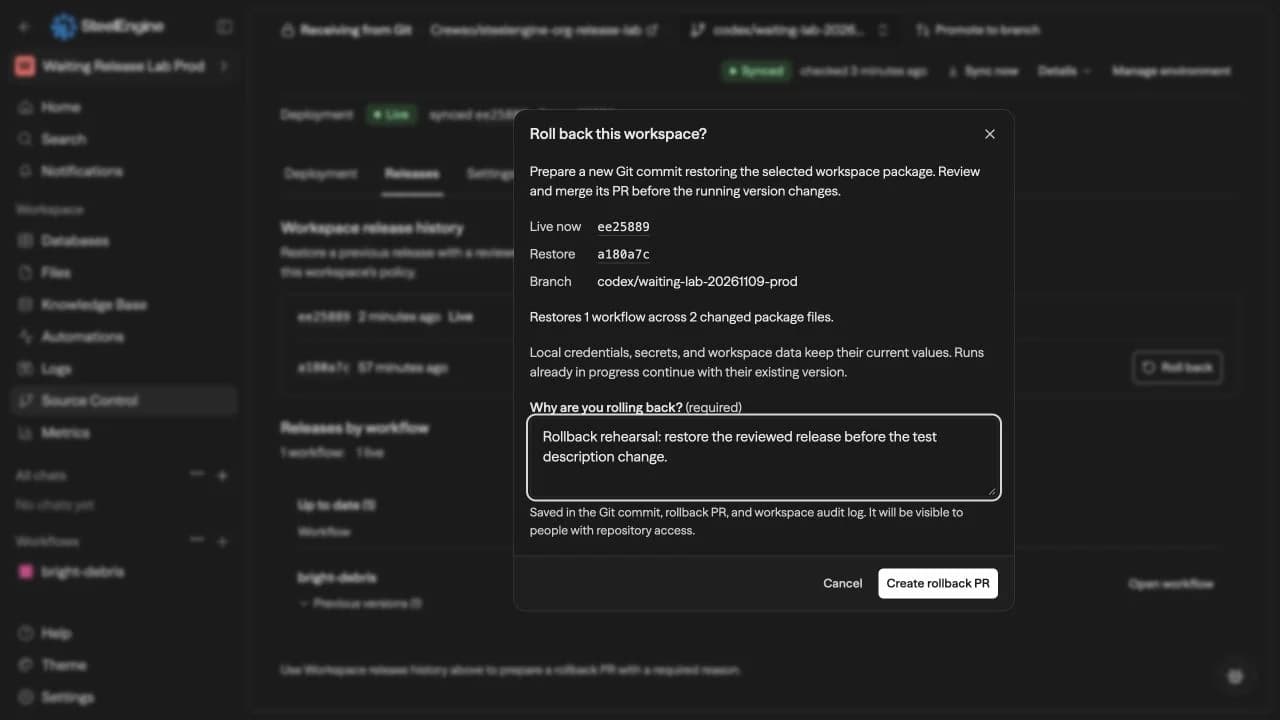
A rollback creates a new commit on the existing branch history. The new live commit therefore differs from the historical commit whose package was restored. It does not reset the branch or change a workspace's connection. Local credentials, secrets, tables, files, and other workspace data keep their current values; rollback does not undo data changes made by earlier runs. Runs already in progress continue using their existing version.
Preparation stops if the connection, branch head, or live release changed after the preview, if another deployment is in progress, or if the selected package belongs to another source identity or lies outside the branch history. Close the dialog and review a fresh preview. Resource assignments and normal package approval are checked again during synchronization and deployment. Legacy connections must first be saved through Settings > Change connection.
If the connected branch already contains the selected package, use Deployment to synchronize and deploy it instead of creating an empty PR. Restoring an individual workflow through its separate deployment history does not restore a branch-connected workspace package.
Read rollback details in release history
After a successful deployment, Workspace release history shows Restored release with a link to the older deployed commit when the complete package matches that release. The new release keeps its own commit and Live marker. A partial revert that changes only part of the package is labeled Git revert rather than claiming to restore a complete release.
The row shows the recorded reason and a link to the PR that introduced the change, when available. This works for rollback PRs created in SteelEngine and normal Git or GitHub revert PRs merged into the connected branch. Write a Reason section in the Git PR description or explain the rollback in the revert commit body. If Git contains no explanation, the row says No reason recorded in Git. The required reason in SteelEngine's dialog does not enforce a reason for changes made outside the app.
Open PRs, synchronized drafts, and failed deployments do not receive a completed rollback note. Git reverts follow the same synchronization, resource validation, and manual or automatic deployment policy as other changes. A direct revert may match an earlier approved package; configure repository branch protection if every new change must pass a new PR review. Resetting or force-pushing the branch backward is rejected by synchronization.
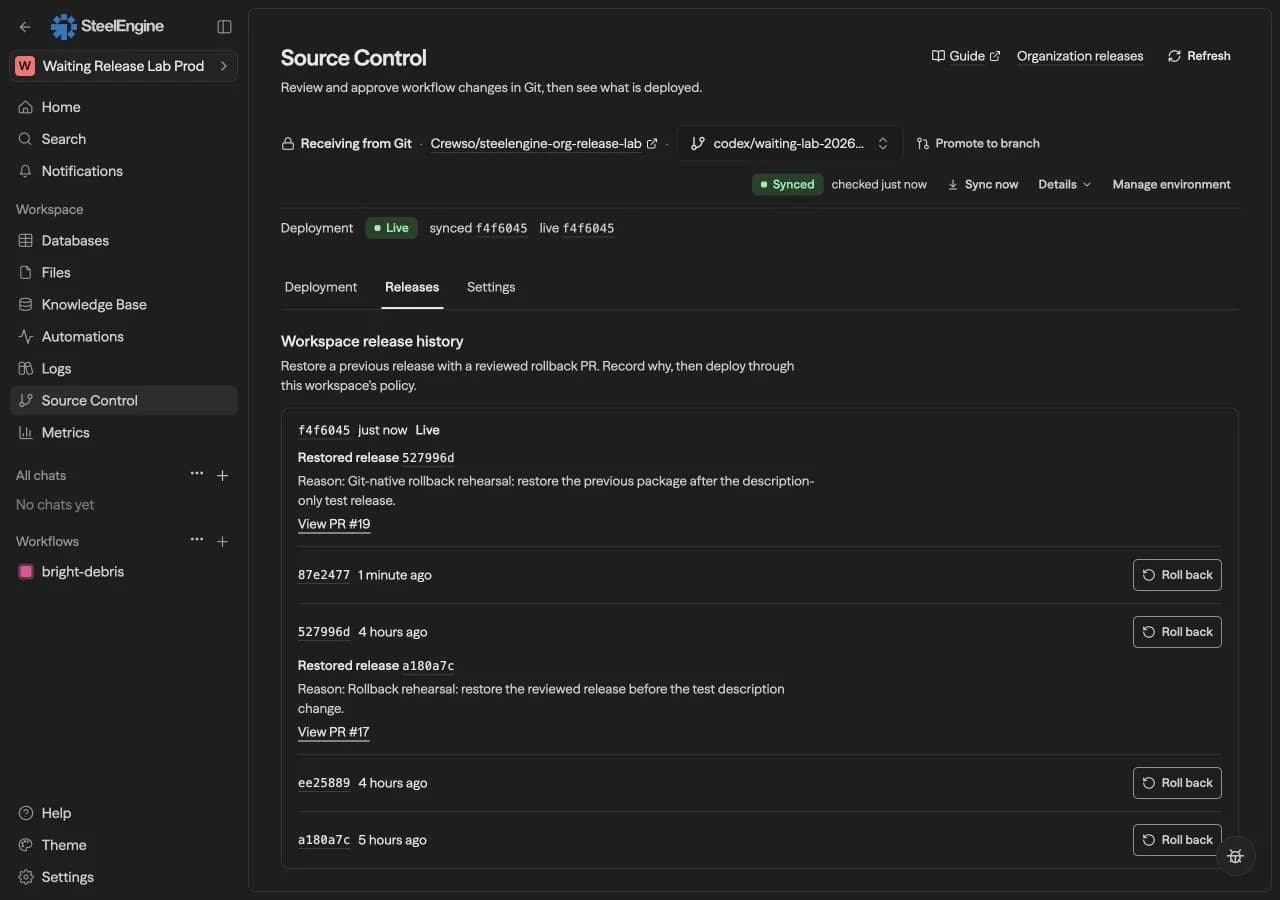
Details are retained in the existing workspace audit log once verified. Older releases are inspected from Git in the background, within the recent 100-deployment history. Missing Git access leaves the release list available with Retry release details; it is not treated as a missing reason. A matching package outside the retained history cannot be identified as a complete restoration.
No additional database migration is needed for the rollback UI. It uses existing successful deployment records, Git commits and PRs, and the audit log.
Recovery
- Invalid or unreviewed packages leave the previous live versions intact. Fix the reported problem, update resource assignments if needed, and synchronize again.
- Repeated hooks reuse the same release operation. Stale commits and obsolete configuration revisions cannot move a workspace backward.
- Scheduled reconciliation recovers missed hooks. A warning about hourly checks can be retried with Sync approved changes.
- Reconciliation skips deleted workspaces and removed repository connections before contacting GitHub or queuing new work. Deleted workspace records remain as history and do not prevent an organization settings manager from removing an otherwise unused repository connection.
- Rewriting branch history is rejected. Roll back with a reviewed revert on the existing history, or have an authorized manager explicitly change the connection and review its next deployment.
- Deployment activates workflows sequentially and attempts to restore previous versions, schedules, and webhooks if a later workflow fails. This is not an atomic workspace-wide traffic switch.
- Existing production connections remain compatible. Saving them through the repository connection form converts their source mapping to Git package provenance, so synchronization no longer depends on the source workspace's database records.
Upgrade an existing installation
Apply database migration 0299_repository_workspace_connections and roll out compatible web, realtime, and Worker versions together before using the new policies. Each self-hosted installation needs this database update when upgrading.
Apply migrations through 0304_preserve_inherited_bindings_and_promoted_timeouts before deploying packages with workflow execution timeout settings. New packages carry the configured timeout, including a cleared setting that uses platform defaults. Manual sync leaves the live timeout in place until deployment. Older packages without timeout metadata preserve the target's current setting.
Migration 0301_waiting_workspace_receivers permits an unknown source identity only for an unsynchronized, undeployed receiver with no imported workflow IDs. Its database guard allows the first identity to be pinned only through the validated release transaction. Apply it with compatible web and Worker versions on each installation before saving waiting receivers. It does not change existing identities, policies, definitions, or live versions.
Migration 0300_git_only_workspace_editing extends Git-only write protection to authoring workspaces and wire ties. Apply it with the matching application versions to enable the independent editing policy on every connected workspace. It does not change existing policy values or workspace contents.
The migration stores the branch lock, workflow editing policy, and configuration revision separately. It permits multiple destination workspaces to consume the same repository package and records source identity as Git provenance, without requiring a source workspace in the destination database. It also updates database write guards so authorized managers can change a connection while Git-only definitions and deployment activation stay protected.
Existing production workspaces keep their connected branch, enabled branch lock, and Git-only editing policy. Workflows, folders, credentials, workspace data, and active deployment versions are preserved. Applying the migration does not copy workflows, synchronize Git, or publish a version. Existing legacy connections stop depending on local source records when an authorized manager saves them through Change connection.