SteelEngine's execution engine brings your workflows to life by processing blocks in the correct order, managing data flow, and handling errors gracefully, so you can understand exactly how workflows are executed in SteelEngine.
Every workflow execution follows a deterministic path based on your block connections and logic, ensuring predictable and reliable results.
Documentation Overview
Execution Basics
Learn about the fundamental execution flow, block types, and how data flows through your workflow
Passing Files
Send files into workflows, pass them between blocks, and receive them in API responses
Logging
Monitor workflow executions with comprehensive logging and real-time visibility
Cost Calculation
Understand how workflow execution costs are calculated and optimized
External API
Access execution logs and set up webhooks programmatically via REST API
Hosted Chat
Publish one deployed workflow as a public chat page
Metrics
See how every workflow ran: volume, reliability, latency, and cost
Notifications
Review approvals and workspace requests from the in-app inbox
Frontend Launch Kit
Export deployed workflows as fetch clients, React Query hooks, and a secure Next.js proxy
Key Concepts
Topological Execution
Blocks execute in dependency order, similar to how a spreadsheet recalculates cells. The execution engine automatically determines which blocks can run based on completed dependencies.
Path Tracking
The engine actively tracks execution paths through your workflow. Router and Condition blocks dynamically update these paths, ensuring only relevant blocks execute.
Layer-Based Processing
Instead of executing blocks one-by-one, the engine identifies layers of blocks with no dependencies on each other and runs them concurrently, optimizing performance for complex workflows.
Subflow bounds (Loop / Parallel)
Within loops and parallel blocks, the engine supports up to 20 parallel branches by default and up to 1,000 loop iterations. For larger collections, the Parallel Window block processes up to 1,000 items with 1-20 active at a time. Nested subflows (loops inside parallels, or vice versa) are supported up to 10 levels deep. These defaults are enforced by the workflow engine (MAX_PARALLEL_BRANCHES, MAX_LOOP_ITERATIONS, MAX_NESTING_DEPTH).
Parallel Windows accept a collection, a count from 0 to 1,000, or named branches. Each item keeps its slot through sequential loops, child workflow calls, and follow-up blocks, while other items advance independently. Results keep the collection or configured branch order; blocks after the window wait for every item to settle.
Windows stay at the top level and cannot contain Parallel or Parallel Window blocks directly. Called children may contain their own loops, ordinary Parallels, local Variables, and Response blocks. Wait, Human in the Loop, document generation, and nested Parallel Windows are unsupported in those children. See child workflows inside a window for input, failure, and cancellation behavior.
Execution Context
Each workflow maintains a rich context during execution containing:
- Block outputs and states
- Active execution paths
- Loop and parallel iteration tracking
- Environment variables
- Routing decisions
Deployment Snapshots
API, Chat, Schedule, and Webhook executions run against the workflow’s active deployment snapshot. Manual runs from the editor execute the current draft canvas state, letting you test changes before deploying. Publish a new deployment whenever you change the canvas so every trigger uses the updated version.
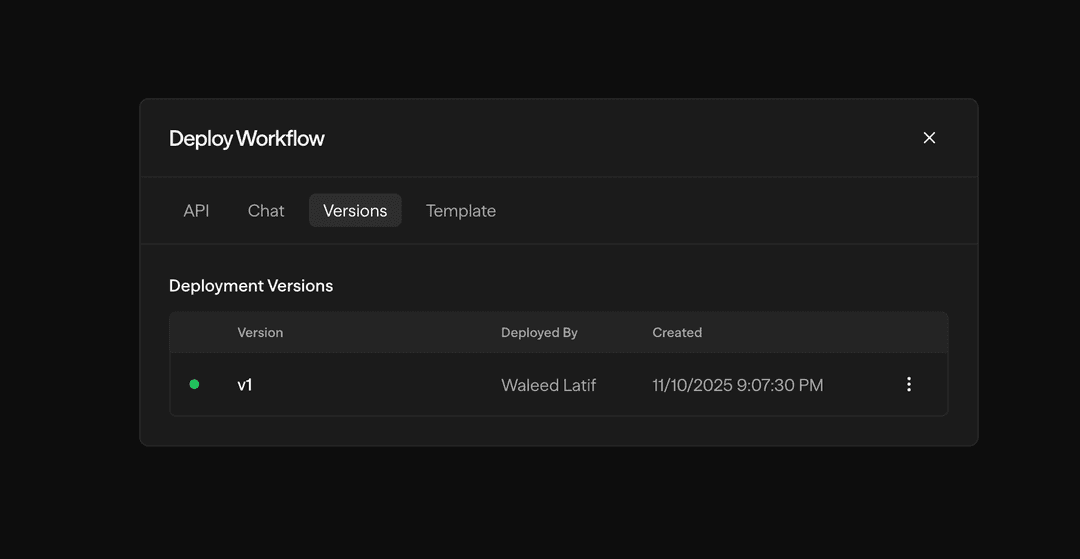
The Deploy modal keeps a full version history—inspect any snapshot, compare it against your draft, and promote or roll back with one click when you need to restore a prior release.
For a source-controlled workflow, merging a pull request synchronizes the protected main draft but does not publish a new deployment. Deploy the synchronized main draft explicitly when it is ready for production.
Programmatic Execution
Execute workflows from your applications using our official SDKs:
# TypeScript/JavaScript
npm install @steelengine/sdk

# Python
pip install steelengine-sdk
// TypeScript Example
import { SteelEngineClient } from '@steelengine/sdk';
const client = new SteelEngineClient({
apiKey: 'your-api-key'
});
const result = await client.executeWorkflow('workflow-id', {
input: { message: 'Hello' }
});Workflow Timeouts
Set Execution timeout when a workflow must finish within a specific elapsed time:
- Right-click one workflow in the sidebar, or open its More actions (
…) menu. - Choose Execution timeout.
- Enter a whole number of seconds from 1 to 2,147,483, then click Save. Leave the field blank and save to restore platform defaults. Zero does not disable timeouts.
You need permission to edit the workflow. The setting applies to new manual, API, chat, webhook, and scheduled runs, including runs of an already-deployed workflow. Changing it does not change the deadline of a run that has already started. Duplicating a workflow preserves its setting.
The clock starts when SteelEngine admits the run for execution, before its first block starts. Time spent waiting for a worker after admission, running blocks, retrying, using a Wait block, or waiting for human approval counts toward the same deadline. Resuming a pause or restarting a worker does not reset it. For schedules, the clock starts when the occurrence is admitted, not at its originally scheduled time; a late occurrence still receives a fresh budget.
For example, a workflow with a 60-second timeout that spends 45 seconds running blocks has at most 15 seconds left for a Wait or an approval. Reaching the deadline ends the run with a timeout, even if it is paused. Work completed before the timeout is not rolled back.
With the field blank, SteelEngine uses the platform's existing sync or async execution defaults. Those active-execution limits allow Human in the Loop pauses to wait indefinitely. A configured hard timeout replaces that default execution budget; individual block, provider, and client request limits still apply.
Updating Through the Builder API
The builder's PUT /api/workflows/{id} endpoint accepts timeoutSeconds as workflow metadata:
| Request body | Effect on future runs |
|---|---|
{"timeoutSeconds": 60} | Set a hard 60-second limit |
{"timeoutSeconds": null} | Clear the override and restore platform defaults |
{"name": "Research"} | Update the name and keep the existing timeout |
This update endpoint requires a signed-in session or trusted internal authentication, plus workflow write access. It does not accept API-key authentication. API-key clients can read data.timeoutSeconds through Get Workflow Definition, then execute the workflow with its configured limit. A client or SDK request timeout controls how long the caller waits and does not change this workflow setting.
When you promote a workflow through Workspace Source Control or Organization Releases, the reviewed package carries its execution timeout. The target uses it after deployment. Bundles captured before timeout support leave the target's setting unchanged.
Best Practices
Design for Reliability
- Handle errors gracefully with appropriate fallback paths
- Use environment variables for sensitive data
- Add logging to Function blocks for debugging
Optimize Performance
- Minimize external API calls where possible
- Use parallel execution for independent operations
- Cache results with Memory blocks when appropriate
Monitor Executions
- Review logs regularly to understand performance patterns
- Track costs for AI model usage
- Use workflow snapshots to debug issues
What's Next?
Start with Execution Basics to understand how workflows run, then explore Logging to monitor your executions and Cost Calculation to optimize your spending. To build a product UI on top of deployed workflows, use the Frontend Launch Kit.