The Human in the Loop block pauses workflow execution and waits for human intervention before continuing. Use it to add approval gates, collect feedback, or gather additional input at critical decision points.
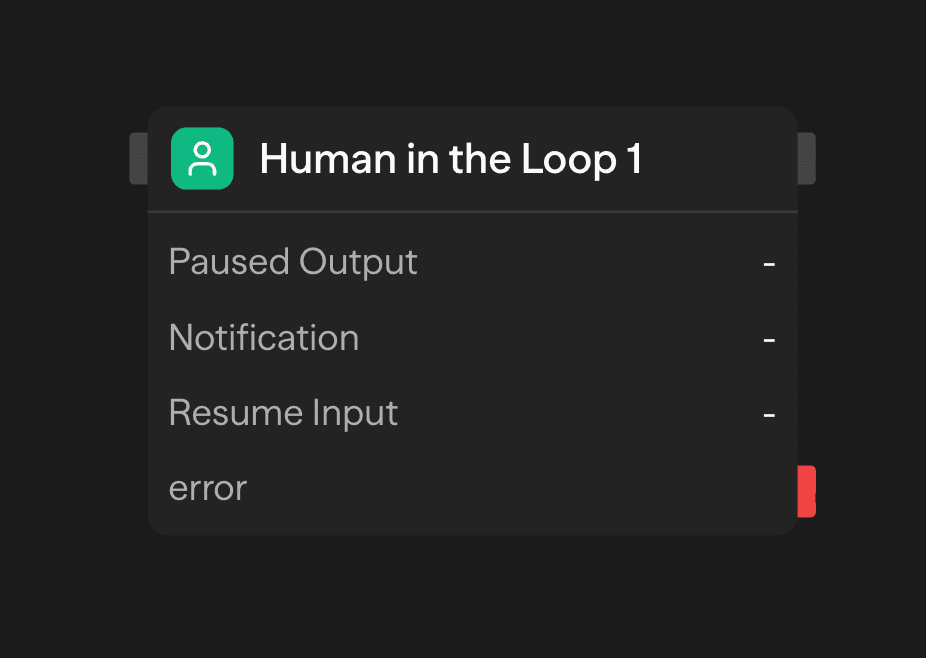
When execution reaches this block, the workflow waits for a human to approve or deny it. They can do so in SteelEngine, through the approval portal, the API, or a webhook. Without a configured workflow timeout, the pause can wait indefinitely. With a hard timeout, the original deadline continues during the pause and ends the run if no decision arrives in time. Resuming does not restart the timeout clock.
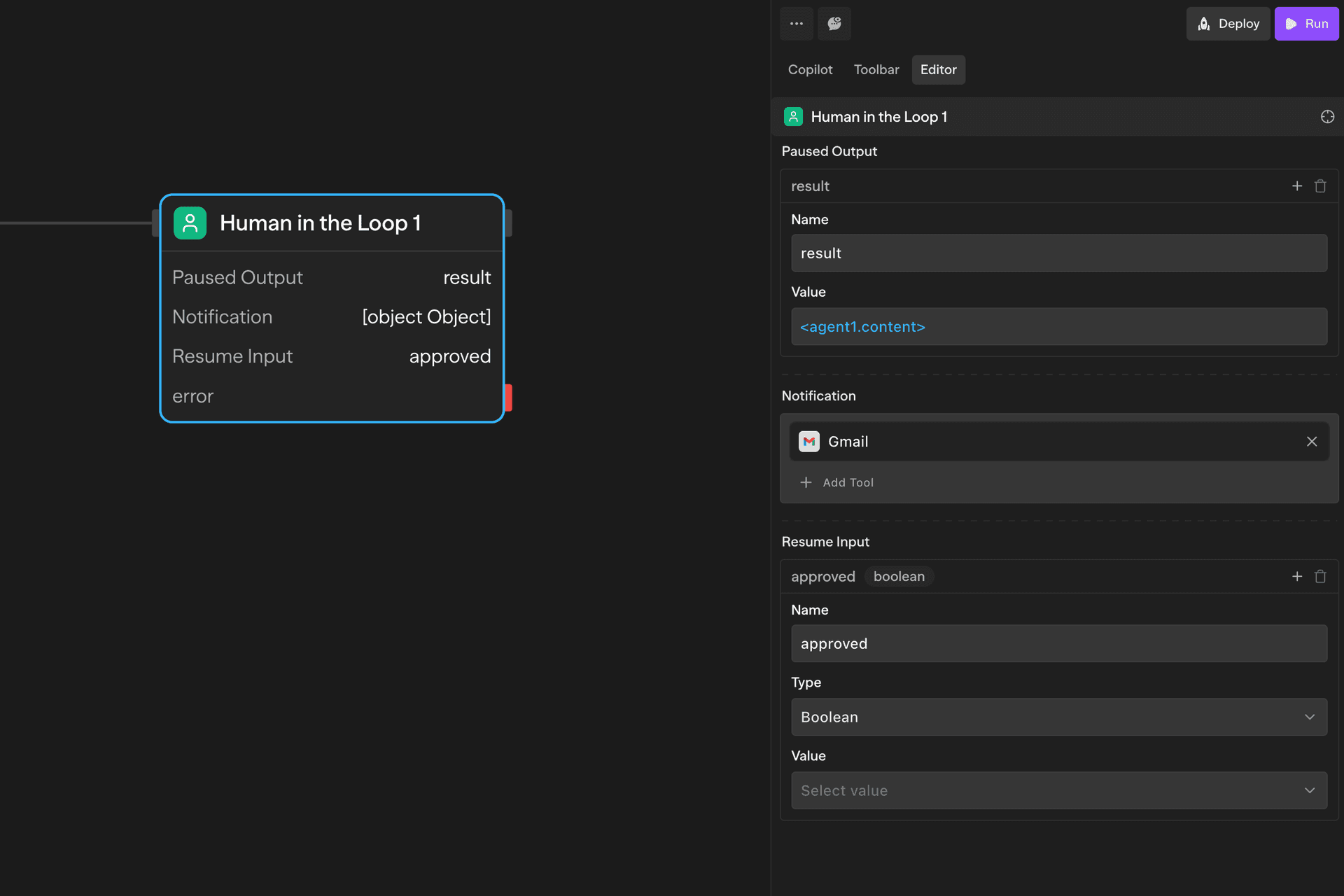
Configuration Options
Display Data
Defines what data is displayed to the approver. This is the context shown in the approval portal to help them make an informed decision.
Use the visual builder or JSON editor to structure the data. Reference workflow variables using <blockName.output> syntax.
{
  "customerName": "<agent1.content.name>",
  "proposedAction": "<router1.selectedPath>",
  "confidenceScore": "<evaluator1.score>",
  "generatedEmail": "<agent2.content>"
}
Notification
Notification Type chooses how approvers learn that an approval is waiting:
- Internal Notification (default) - Alerts approvers inside SteelEngine with an entry in their Notifications inbox
- Internal + External Tools - The internal notification plus the tools configured below
- External Tools Only - Only the tools configured below
External Notification Tools appears for the two external modes. Add any integration tool (Slack, Gmail, Microsoft Teams, a webhook, and so on). Each tool runs when the block pauses and receives the review link to include in its message. Reference the approval URL as <blockId.url>.
Additional Approvers takes a comma-separated list of organization members' email addresses. SteelEngine always notifies the workflow owner and whoever started the run. It also notifies the people listed here.
Resume Form
Defines the fields approvers fill in when responding. This data becomes available to downstream blocks after the workflow resumes.
{
  "approved": {
    "type": "boolean",
    "description": "Approve or reject this request"
  },
  "comments": {
    "type": "string",
    "description": "Optional feedback or explanation"
  }
}
Access resume data in downstream blocks using <blockId.fieldName>.
Approve and Deny
Every resume carries a decision. It is approved unless the resume input sets _humanInTheLoopDecision (or decision) to denied or rejected. The in-app Deny buttons set it for you. The portal's Approve and resume button and a plain API resume default to approved. A denial may include a reason in rejectionReason, denyReason, or reason. Without one, SteelEngine records the reason as "Human approval was denied."
On approval, execution continues along the block's normal connections. On denial, the block output gains denied: true, error, rejectionReason, and deniedAt, and execution follows the block's error output handle. If nothing is connected to the error handle, the run stops at the block.
Approval Methods
In SteelEngine
Pending approvals surface in three places for signed-in members:
- The Notifications page lists every pending approval in the organization under Waiting on you, whatever the block's Notification Type. Review opens the approval with Approve and Deny buttons
- The workflow editor's block panel lists the block's pending approvals with the same Approve and Deny actions
- Each notified approver receives an internal notification titled "Approval needed: (workflow name)" that links to the approval
Denying from these surfaces sets the decision to denied. The editor's Deny accepts an optional reason.
Pause Points Inside Loop and Parallel
A Human in the Loop block inside a Loop or Parallel container pauses once per iteration or branch. Each pause has its own contextId. The contextId is the block ID plus a suffix: the parallel branch index, _loop<iteration> for the loop iteration, and _parents<...> for enclosing loop iterations. Resume each pause point separately with its own contextId. The GET /api/resume/{workflowId}/{executionId} endpoint lists them all.
API Execute Behavior
When triggering a workflow via the execute API (POST /api/workflows/{id}/execute), HITL blocks cause the execution to pause and return the _resume data in the response:
The response includes the full pause data with resume URLs:
{
  "success": true,
  "executionId": "<executionId>",
  "output": {
    "data": {
      "operation": "human",
      "_resume": {
        "apiUrl": "/api/resume/{workflowId}/{executionId}/{contextId}",
        "uiUrl": "/resume/{workflowId}/{executionId}",
        "contextId": "<contextId>",
        "executionId": "<executionId>",
        "workflowId": "<workflowId>"
      }
    }
  }
}
Common Use Cases
Content Approval - Review AI-generated content before publishing
Agent → Human in the Loop → API (Publish)Multi-Stage Approvals - Chain multiple approval steps for high-stakes decisions
Agent → Human in the Loop (Manager) → Human in the Loop (Director) → ExecuteData Validation - Verify extracted data before processing
Agent (Extract) → Human in the Loop (Validate) → Function (Process)Quality Control - Review AI outputs before sending to customers
Agent (Generate) → Human in the Loop (QA) → Gmail (Send)Block Outputs
url - Portal URL for the paused execution
resumeEndpoint - Resume API endpoint URL for this pause point
response - The pause response object: data (operation, responseStructure describing the Display Data, inputFormat, the _resume links, and after resume submission, submittedAt, and decision), plus status, headers, operation, responseStructure, inputFormat, and resume (json)
submission - Form submission data from the approver (json)
resumeInput - The raw resume input as received (json)
submittedAt - ISO timestamp when the workflow was resumed
_humanInTheLoopDecision - approved or denied
denied, error, rejectionReason, deniedAt - Present only when the decision was denied
<fieldName> - All fields defined in Resume Form become available at the top level after the workflow resumes
Access using <blockId.fieldName>.
Example
Paused Output:
{
  "title": "<agent1.content.title>",
  "body": "<agent1.content.body>",
  "qualityScore": "<evaluator1.score>"
}
Resume Input:
{
  "approved": { "type": "boolean" },
  "feedback": { "type": "string" }
}
Downstream Usage:
// Condition block
<approval1.approved> === true
The example below shows an approval portal as seen by an approver after the workflow is paused. Approvers can review the data and provide inputs as a part of the workflow resumption. The approval portal can be accessed directly via the unique URL, <blockId.url>.
Related Blocks
- Condition - Branch based on approval decisions
- Variables - Store approval history and metadata
- Response - Return workflow results to API callers