The Schedule block automatically triggers workflows on a recurring schedule at specified intervals or times.
Use a Schedule trigger to run the same deployed Workflow on a cadence. Use a scheduled Sub Agent to repeat saved instructions against current workspace state. Sub Agent tasks have their own model, supported reasoning options, attached context, and run history. A workflow schedule uses the deployed blocks and each Agent block's model configuration.
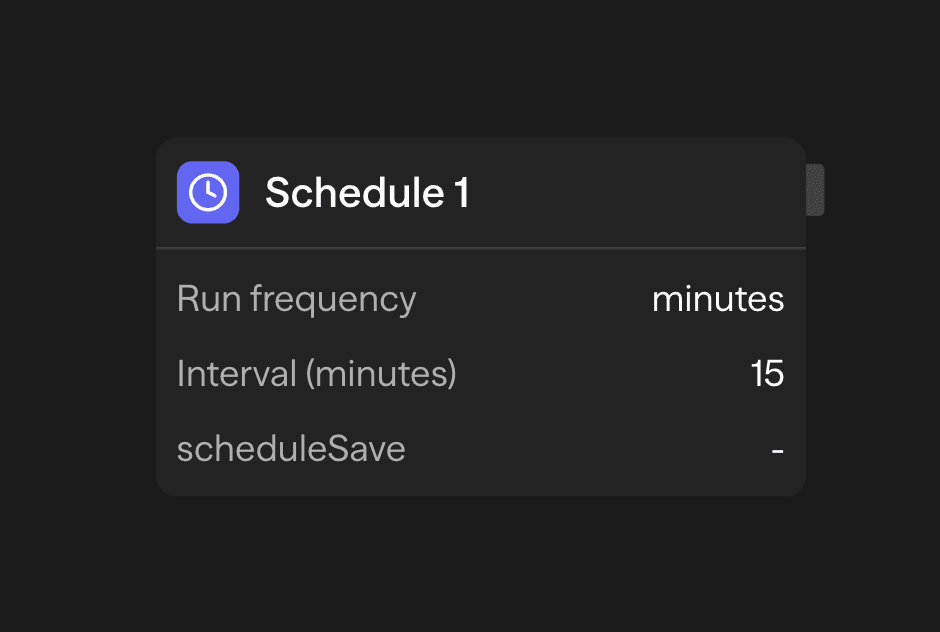
Schedule Options
Configure when your workflow runs:
- Every X Minutes: Run at minute intervals (1-1440)
- Hourly: Run at a specific minute each hour
- Daily: Run at a specific time each day
- Weekly: Run on a specific day and time each week
- Monthly: Run on a specific day and time each month
Timezone
Daily, weekly, monthly, and cron schedules run in the Timezone you select. The dropdown offers 35 common zones and pre-selects your browser's timezone when you add the block. Every X Minutes and Hourly schedules do not use wall-clock time. SteelEngine hides the Timezone field for them.
Activation
Schedules are tied to workflow deployment:
- Deploy workflow → Schedule becomes active and starts running
- Undeploy workflow → Schedule is archived and stops running
- Redeploy workflow → The schedule for each Schedule block is reused or recreated with the current configuration
You must deploy your workflow for the schedule to start running. Configure the schedule block, then deploy from the toolbar.
Execution Timeout
Each scheduled occurrence uses the workflow's Execution timeout, if set. The clock starts when SteelEngine admits that occurrence for execution, before its first block, rather than at the scheduled timestamp. A delayed occurrence therefore receives its full configured budget from admission. Waits, approvals, and subsequent worker delays count toward that deadline.
Changing or clearing the setting affects future occurrences; it does not extend one already running. Leave the setting blank to use the platform's async execution default.
Automatic Disabling
Schedules automatically disable after 100 consecutive failures to prevent runaway errors. When disabled:
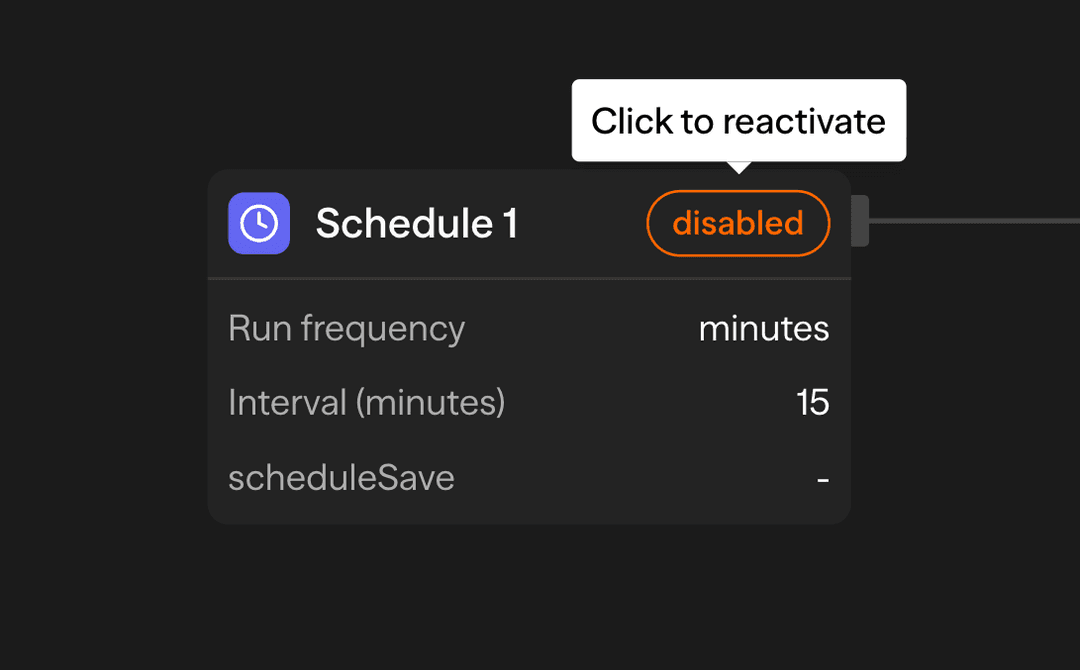
- A warning badge appears on the schedule block
- The schedule stops executing
- Click the badge to reactivate the schedule
Some failures disable the schedule immediately, without waiting for the counter:
- An authentication or authorization error (HTTP 401 or 403), for example when the workflow is no longer deployed
- A missing workflow (HTTP 404)
Fix the cause. Redeploy the workflow. Then reactivate the schedule.
Schedule blocks cannot receive incoming connections and serve as workflow entry points only.