Webhooks allow external services to trigger workflow execution by sending HTTP requests to your workflow. SteelEngine supports two approaches for webhook-based triggers.
Generic Webhook Trigger
The Webhook block (the Generic Webhook trigger) creates a flexible endpoint that can receive any payload and trigger your workflow:
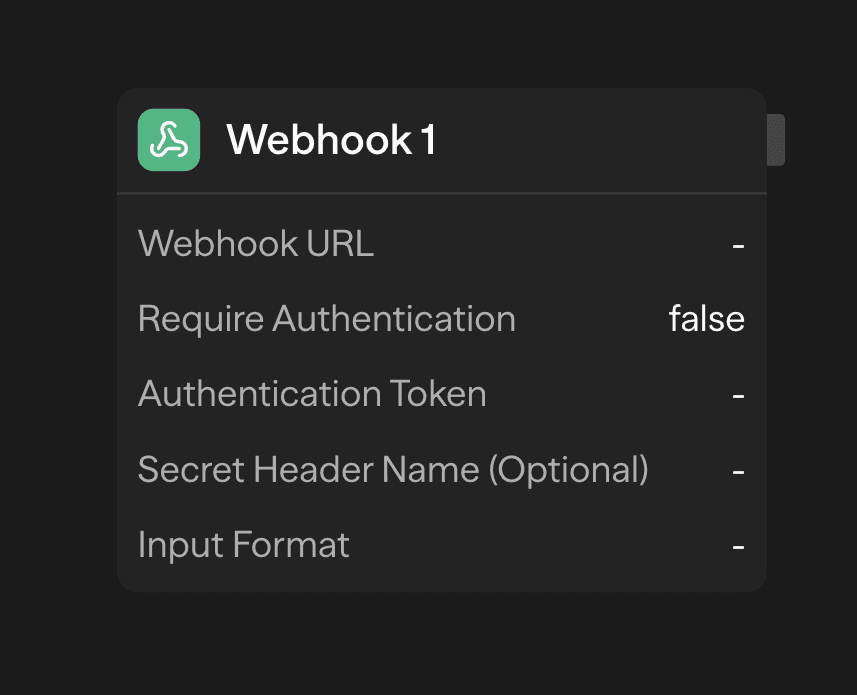
How It Works
- Add Webhook Block - Drag the Webhook block from the toolbar's Triggers section to start your workflow
- Configure Payload - Set up the expected payload structure in Input Format (optional)
- Get Webhook URL - Copy the generated endpoint,
{{API_URL}}/api/webhooks/trigger/<path>, where<path>is unique to this trigger - External Integration - Configure your external service to send POST requests to this URL
- Workflow Execution - Every request to the webhook URL triggers the deployed workflow
The triggered run uses the workflow's Execution timeout, if configured, including waits and approval pauses. Otherwise, platform async defaults apply. This runtime limit is separate from the HTTP acknowledgement sent to the webhook caller.
Features
- Flexible Payload: Accepts any JSON payload structure
- Automatic Parsing: The JSON body is parsed and its fields are available to subsequent blocks as
<webhook1.fieldName> - Authentication: Bearer token or custom header authentication, on by default with a generated token
- Rate Limiting: Built-in protection against abuse
- Deduplication: Skips repeated deliveries when the request carries a recognized delivery id or you set a Deduplication Field (see below)
The Generic Webhook trigger fires every time the webhook URL receives a request, making it perfect for real-time integrations.
Block Options
- Require Authentication: On by default. Every request must then carry the Authentication Token. SteelEngine generates the token when you add the block. Set Secret Header Name to send the token in a custom header, for example
X-Secret-Key, instead ofAuthorization: Bearer TOKEN. - Deduplication Field: A dot-notation path to a unique value in the payload, such as
event.id. When the same value arrives again within 7 days, SteelEngine skips the duplicate. Without it, SteelEngine deduplicates only on standard delivery-id headers such aswebhook-id,x-github-delivery,svix-id,idempotency-key, orx-steelengine-idempotency-key. Requests with none of these run every time. - Acknowledgement: Default answers accepted requests with
200and{"message":"Webhook processed"}. Custom answers with an empty200response. - Input Format: Optional schema for the expected JSON body. Use type
file[]for fields that carry uploaded files.
Trigger Mode for Service Blocks
Alternatively, you can use specific service blocks (like Slack, GitHub, etc.) in "trigger mode" to create more specialized webhook endpoints:
Setting Up Trigger Mode
- Add Service Block - Open the toolbar's Triggers section. Drag or click the service you want, such as Slack, GitHub, or Airtable. This adds the block in trigger mode. The same service added from the Blocks section is an action block
- Pick the Event - Choose the event the trigger should listen for
- Configure Service - Set up authentication and event filters specific to that service
- Webhook Registration - Follow the provider's setup instructions. Some services register a webhook automatically; Slack uses the Events API URL configured on the installed app
- Event-Based Execution - Workflow triggers only for specific events from that service
Slack triggers select a bot installation and filter its subscribed event stream. Multiple workflows can use the same app URL. Configure subscriptions on the app, then choose event and channel filters on each trigger. See Slack Events and Channels.
When to Use Each Approach
Use Generic Webhook when:
- Integrating with custom applications or services
- You need maximum flexibility in payload structure
- Working with services that don't have dedicated blocks
- Building internal integrations
Use Trigger Mode when:
- Working with supported services (Slack, GitHub, etc.)
- You want service-specific event filtering
- You need automatic webhook registration
- You want structured data handling for that service
Supported Services for Trigger Mode
Every integration in the toolbar's Triggers section supports trigger mode. The Integration Triggers list on the Triggers overview shows each provider, its number of events, and a link to its tool page.
Email and Google Workspace triggers (Gmail, Outlook, IMAP Email, Google Calendar, Google Drive, Google Sheets) poll the account on a schedule instead of receiving webhooks. They need no webhook registration. SteelEngine disables them after 100 consecutive failed polls.
Security and Best Practices
Authentication Options
- Bearer Tokens: Include
Authorization: Bearer <token>header - Custom Headers: Define custom authentication headers
Payload Handling
- Validation: Validate incoming payloads to prevent malformed data
- Body Format: SteelEngine parses JSON bodies as JSON. It parses
application/x-www-form-urlencodedbodies into an object. If a form body carries apayloadfield, SteelEngine parses that field as JSON instead - Deduplication: Set a Deduplication Field so retried deliveries do not run the workflow twice
Testing Webhooks
- Use tools like Postman or curl to test your webhook endpoints
- Check workflow execution logs for debugging
- Verify payload structure matches your expectations
- Test authentication and error scenarios
Always validate and sanitize incoming webhook data before processing it in your workflows.
Common Use Cases
Real-time Notifications
- Slack messages triggering automated responses
- Email notifications for critical events
CI/CD Integration
- GitHub pushes triggering deployment workflows
- Build status updates
- Automated testing pipelines
Data Synchronization
- Airtable changes updating other systems
- Form submissions triggering follow-up actions
- E-commerce order processing
Customer Support
- Support ticket creation workflows
- Automated escalation processes
- Multi-channel communication routing