Git Approval and Release Status
Follow an organization release branch and deploy approved changes to organization-managed workspaces
Use Organization settings → Organization releases on an enabled self-hosted installation. One promotion PR contains a fixed inventory of the workspaces managed by the organization. The target follows the configured Git repository and branch, verifies the approved release, and deploys according to its policy.
Organization Releases promotes workflows and folders from its managed workspaces. Apps, tables, knowledge bases, and documents in those workspaces block capture. Credentials, runtime data, Kubernetes rollout, traffic switching, and trigger ownership stay separate.
Workspaces with their own Source Control connection are independent, even if they use the same repository and branch. Their content does not participate in organization capture, deployment, or rollback. A connection with an error is still independent. See Workspace release scope for the current list.
Set Up the Authoring Installation
Organization admins can configure the repository and upstream branches by default. To delegate this to a custom role, grant organization:promotion_repository_configure and read access to the managed workspaces. Workspace admin access alone does not grant this authority. Saving a target's sync policy requires promotion management and apply access for the organization and each managed workspace. Automatic deployment also requires activation access. The background follower rechecks the authorizing actor’s current access and API-key scope.
- Complete Kubernetes setup, including a stable installation identity, enabled promotion, environment policy, and signing key. The existing CLI/API configures installation policy and trust.
- Connect GitHub in Integrations. Select an account and repository accessible to the installed GitHub App, or create a private repository. Grant access only to the intended repository.
- Open Organization settings → Organization releases and select Authoring.
- Select the organization repository, development branch (default
dev), promotion target branch (defaultprod), target environment key, and repository folder (defaultsteelengine). The target branch does not fall back to the repository default. - If needed, enable Create missing development and target branches and select the existing starting branch. Setup preserves branches that already exist. An empty repository needs an initial commit.
- Save. Existing workspace connections remain independent. Organization Releases uses a stable
steelengine/workspaces/<workspace-id>folder for each managed workspace in the release without creating a workspace Source Control connection.
Workspace names remain visible in the manifest and UI. Folder identities stay stable when a workspace is renamed. A release writes its signed component packages below each workspace folder's release/ directory; steelengine/organization-release.json signs the complete inventory, target, and component hashes.
Capture and Review
- Make changes in the organization-managed development workspaces. The organization candidate freezes their workflow definitions for Git review. Workspaces with their own connection continue using their own capture, PR, and deployment flow.
- Select Create organization release. The page lists unsupported content by workspace before capture. Capture rechecks access and supported content inside the transaction. A failure rolls back the complete capture rather than producing a partial organization.
- Select Open promotion PR. Review all workspace files and retirements against the configured target branch. Continued edits in development require another candidate; retries reuse the retained candidate bytes.
- Merge through your GitHub branch rules. Select Check PR approval on the authoring installation. The target picks up the release on its next branch check; select Sync now to check immediately.
Approval verification checks the immutable repository ID, configured target branch, PR head, merge commit, ancestry, complete file inventory, and exact retained content. A modified candidate or a newer release on the branch requires fresh verification. A source installation does not infer whether a remote installation is deployed.
Set Up the Target Installation
The target needs its own GitHub connection and target-local integrations. Use the same repository, root, and branch mapping. On the authoring installation, expand Source IDs for target setup on a captured release; select an ID field to copy its full value. On the target, select Target, enter the source deployment and organization identities, and map each included source workspace ID to an empty target workspace. Connect any independent target workspaces to their own Source Control branch before setting up the organization mapping.
The target environment key must match the target installation. The mapping must cover exactly the managed workspaces on both sides. Existing managed mappings cannot be reassigned. A scope change requires a new matching capture and target configuration. A production workspace already enrolled under organization promotion cannot switch to workspace Source Control in place.
Both policies verify and prepare the reviewed release. Choose Deploy manually to leave it at Ready to deploy · not live until an authorized operator selects Deploy organization. Choose Deploy automatically to activate it after validation. Either policy pauses when a plan needs explicit acceptance, when resources or trust are missing, or when the workspace scope has changed. Changing only the deployment policy keeps the approval and release history.
Install independently authorized public trust covering the producer signing key for each source workspace. Do not copy the development private key. Configure the target's allowed Git carrier with refKind: branch and the exact promotion branch. Existing signed-review and validation requirements still apply: Git merge approval does not silently replace them. If your reviewed policy intentionally uses GitHub as the only review gate, configure that explicitly rather than relying on a default.
Check, Prepare, Deploy
- Sync now verifies the Git approval and signature, checks readiness, and prepares the release when no human acceptance is needed. In manual mode, existing active workflow versions continue to serve.
- If synchronization needs attention, use Check readiness to inspect missing trust, permissions, integration assignments, unsupported tools, or incompatible definitions. Review changes grouped by workspace and workflow name. Summaries compare the captured files with the currently deployed release; readiness also checks target-local drift. Expand Technical details for object and change IDs.
- Use Prepare release after reviewing changes that require acceptance. Accept exactly the reported changes, including any target drift you intend to replace. Existing active versions continue to serve. Preparation failures roll back all managed workspace definition changes.
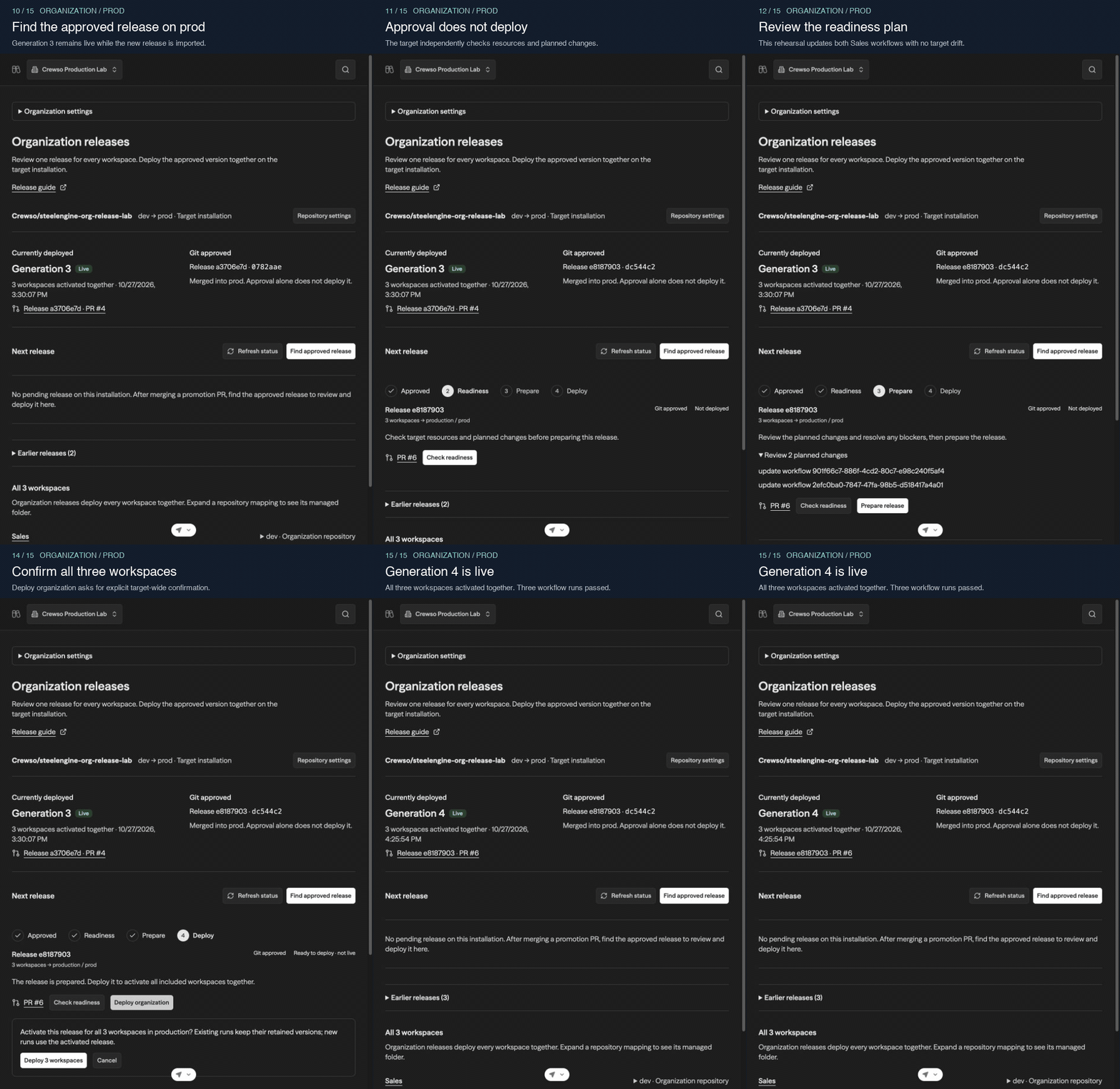
- Deploy organization shows an explicit confirmation naming the target environment and workspace count. Deployment rechecks Git, trust, access, configuration, inventory, resources, and plan freshness. One database transaction commits every workspace activation and the organization generation. A failure leaves the prior active pointers unchanged.
- Verify the target's Currently deployed release and generation. New runs use the activated versions; existing runs retain their pinned versions. Separately verify infrastructure health and traffic routing.
This local rehearsal promotes an approved workspace snapshot through an organization PR into prod. Generation 3 remains live through preparation; explicit deployment activates generation 4 across all three workspaces.
Open the complete MP4 walkthrough for the preceding workspace capture, review, commit, and PR steps. The walkthrough is assembled from captured local browser steps; GitHub review and merge occur between them. The numbered instructions above provide the same procedure without animation.
Acceptance applies to the exact readiness plan shown. If a new check produces a different plan, review and accept its changes again.
Readiness plans expire. Run Check readiness again and prepare the renewed plan before deployment. A lost response can be retried; an already committed deployment returns its existing generation. Direct workspace activation/rollback cannot bypass an organization-managed target's deployment boundary.
Restore a Previous Organization Release
- On the target, expand Earlier releases and select Check rollback readiness on a previously deployed release.
- Review the complete organization rollback plan. The server checks the retained activation proof, current access, trust, retention window, runtime compatibility, and target-local resource assignments for every workspace. A missing or incompatible resource blocks the whole rollback.
- Accept the exact reviewed plan, including any workflows that will stop accepting new runs, then select Restore N workspaces.
- Verify Currently deployed. Rollback creates a new generation that restores the retained workflow versions and assignments across all workspaces in one transaction. Current drafts, local resource values, runtime data, and in-flight runs are preserved.
A failed transaction preserves every active pointer. Refresh status after a lost response; retrying the same rollback plan returns its committed generation without activating again. A stale or expired plan requires Check rollback readiness again. Git availability is not required to replay a committed rollback or restore an eligible retained activation; the original Git carrier must still satisfy target policy.
Rollback requires the same complete workspace inventory, mappings, and repository configuration as the retained release. Removing a whole workspace or changing those mappings is not a supported retirement operation. A workflow removed within an existing workspace can be retired through a new reviewed release.
Read the Status Correctly
The page separates Currently deployed from Git approved. The target shows the live generation and activation time, then Next release with the next preparation or deployment action. The authoring installation shows Latest release and its Git review progress. Earlier releases expands retained candidates and previous deployments; their actions remain available. Expired readiness warnings apply to pending deployments, not already deployed releases.
The workspace list links directly to workflow review and shows each upstream branch and repository source. Expand a mapping to inspect its managed folder. Repository settings → Back to releases leaves configuration without saving.
| UI fact | Evidence | What it does not mean |
|---|---|---|
| Awaiting PR merge | A promotion PR exists | Approved or deployed |
| Git approved | Exact candidate verified in a merged PR on the configured branch | Target definitions prepared or runtime active |
| Prepared · checks required | Definitions prepared; activation checks need attention | Safe to activate immediately |
| Ready to deploy · not live | Current stored preflights passed and have not expired | Deployed |
| Currently deployed | Target's active organization pointer references this release and generation | Kubernetes traffic switched or external trigger ownership transferred |
| Previously deployed | Retained historical activation | Still serving new runs |
| Deployment reported on target | This is the authoring installation | Remote deployment success or failure |
Refresh and Webhooks
On the target, enable the organization release sync job and save repository settings to authorize it. An authenticated GitHub push to the configured branch makes it due on the next job run. Periodic checks about every five minutes recover missed webhooks. Sync now checks immediately and follows the selected deployment policy. Refresh status only reloads recorded state. Independent workspace webhooks continue to follow their own connections.
A branch without a release waits for its first reviewed release. A rewritten history, invalid signature, or a candidate outside the followed branch stops synchronization and leaves the live generation in place. Polling does not redeploy a historical release after a coordinated rollback.
Existing installations keep manual deployment by default. Apply migration 0304_preserve_inherited_bindings_and_promoted_timeouts when upgrading an installation that used the earlier organization setup. It keeps untouched bindings that the old setup created in the organization release scope and preserves their history. Connections configured separately stay independent.
If an older binding was synchronized and its origin is unclear, expand its row under Workspace release scope. Use Restore organization ownership only after confirming that the old organization setup created it. This action keeps its Git connection and returns the workspace to organization releases. Saving a workspace connection through Workspace Source Control makes it independent. Saving target settings authorizes background checks.
Reviewed releases carry each workflow's Execution timeout. It takes effect at activation; preparing a release keeps the live timeout. Rollback restores the timeout recorded in the retained release. Older bundles without timeout metadata leave the target setting unchanged.
Current Boundaries
The organization coordinator has a configured target per installation and captures at most 200 workspaces, a 64 MiB aggregate, and bounded component files. The signed file CLI remains workspace-scoped. Workspace removal/retirement, additional object adapters, cross-workspace workflow references, and automatic blue/green traffic/trigger coordination remain separate work. Rehearse supported workloads and failure recovery before client production acceptance.